


Get started installing LineageOS 14.1 on the OnePlus 5. Unlock your recovery and install TWRP in just a few steps.
Table of contents
Real-world use case
You want to bring your OnePlus 5 back up to date: here's how to install LineageOS 14.1.
LineageOS
LineageOS is the successor to the free, alternative CyanogenMod system running on Android. It's popular because it's an open-source replacement operating system for smartphones and tablets, based on Android. I mainly use it on my Android devices for privacy, stability, and security reasons. This article will cover every aspect of the installation on a freshly unboxed OnePlus 5 device.
Table of contents
- Installing the Android SDK tools on Debian 9
- Installing the Android SDK tools on Windows
- Unlocking the Bootloader and installing the recovery
- Installing the LineageOS 14.1-20171106 image
- Message when starting the phone? Explanation
- Conclusion on installing LineageOS 14.1
Prerequisites and required tools
Before you start, know that your phone will lose all of its data. I recommend backing it up.
Then let's start by downloading the following prerequisites:
- The TWRP recovery at the following link: TWRP OnePlus 5
- The LineageOS 14.1 custom ROM
- The Google Apps Pico example.
If you run into a problem during the procedure, you can absolutely return to the OnePlus 5's original Android version.
For more information: http://downloads.oneplus.net/oneplus-5/oneplus_5_oxygenos_4.5.3/.
Installing the Android SDK tools on Debian 9
To be able to communicate with the Android smartphone, we need the Android development tools. Let's install the following packages with the apt package manager:
apt-get install android-tools-adb android-tools-fastboot
Once the installation is complete, let's check that our device is detected over USB:
lsusb
Bus 001 Device 007: ID 18d1:4ee1 Google Inc. Nexus 4 / 10
We can now use the ADB and FASTBOOT commands:
adb version
Android Debug Bridge version 1.0.36
Revision 1:7.0.0+r33-1

fastboot --version
fastboot version 1:7.0.0+r33-1
Installing the Android SDK tools on Windows
On Windows, simply get the files from the following link: https://dl.google.com/android/repository/platform-tools-latest-windows.zip, and once downloaded, unzip them:
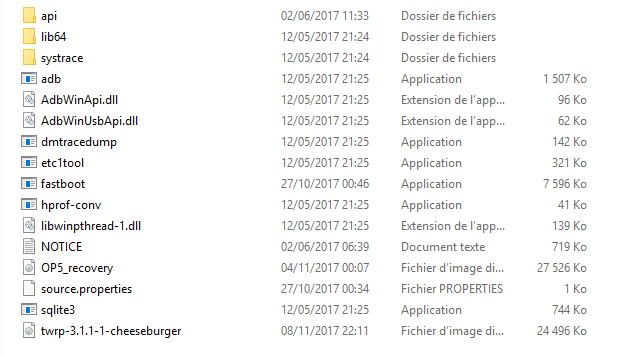
We can use adb and fastboot like this via the CLI:
.adb.exe version
.fastboot.exe --version
Unlocking the Bootloader and installing the recovery
Unlocking the Bootloader is a very simple step, but you first need to use the developer options:
- Go to: Settings → About phone, then tap Build number 5 times.
- Then simply go back to find: Developer options.
- In the options, enable: OEM unlocking.
We're ready to unlock the bootloader and install a recovery like TWRP from Linux:
- Unplug the USB cable connected to the smartphone and hold down: Power + volume up (UP).
- Once FastBoot mode appears, connect your smartphone to the computer again.
- Use the following command: fastboot devices, your smartphone should now be visible,
XXXXXXXX fastboot - Use the following command: fastboot erase recovery, and the smartphone will remove the default recovery.
- Use the following command: fastboot flash recovery "/home/jeremie/documents/twrp.img"
- The recovery installation is now successful.
- Reboot the smartphone.
Installing the LineageOS 14.1-20171106 image
The smartphone boots up with an unlocked bootloader and an up-to-date TWRP recovery.
Now, the next step is to reconfigure OxygenOS as you would on first use.
Once that's done, here are the steps to install the LineageOS image:
- We'll re-enable the developer options as well as USB debugging or Enable USB Debugging Mode.
- We need to connect the smartphone to the PC and copy the LineageOS image and the gapps onto the smartphone.
- We'll hold down: Power + volume down (DOWN) to boot into TWRP recovery.
- We then use the Install option and tap our LineageOS image file to start the installation.
- If you get error 7 during installation, make sure to clear the cache and start the installation again.
- We should get the following result:
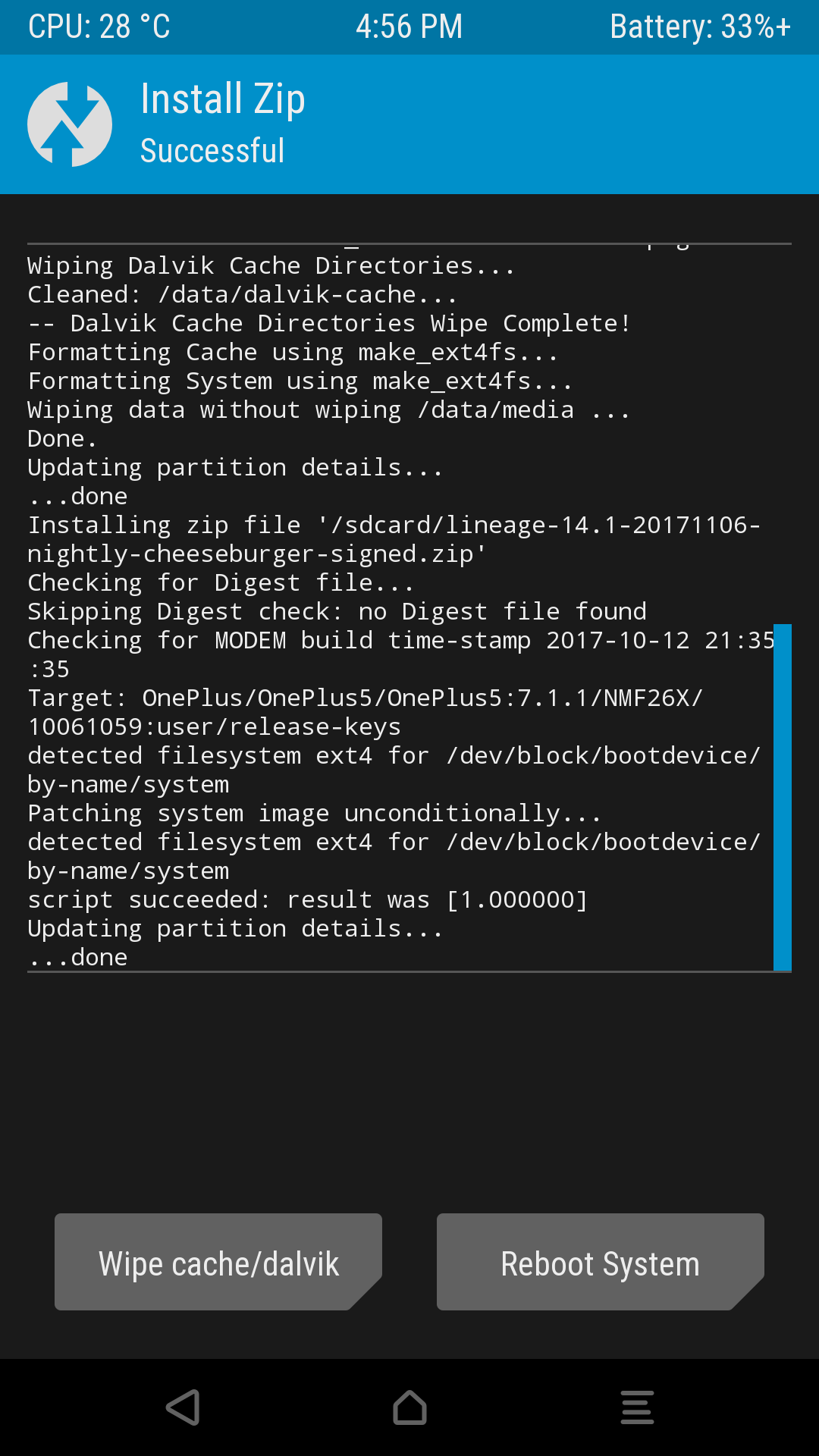
- We'll reboot the system to confirm LineageOS is properly installed on our OnePlus 5 (this may take a while, about 3 to 5 minutes for the first boot).
- Once LineageOS's setup is complete, let's go back into recovery mode (Power + volume down (DOWN).
- We'll install the Gapps in Pico version, which only contains the Google Play Store:
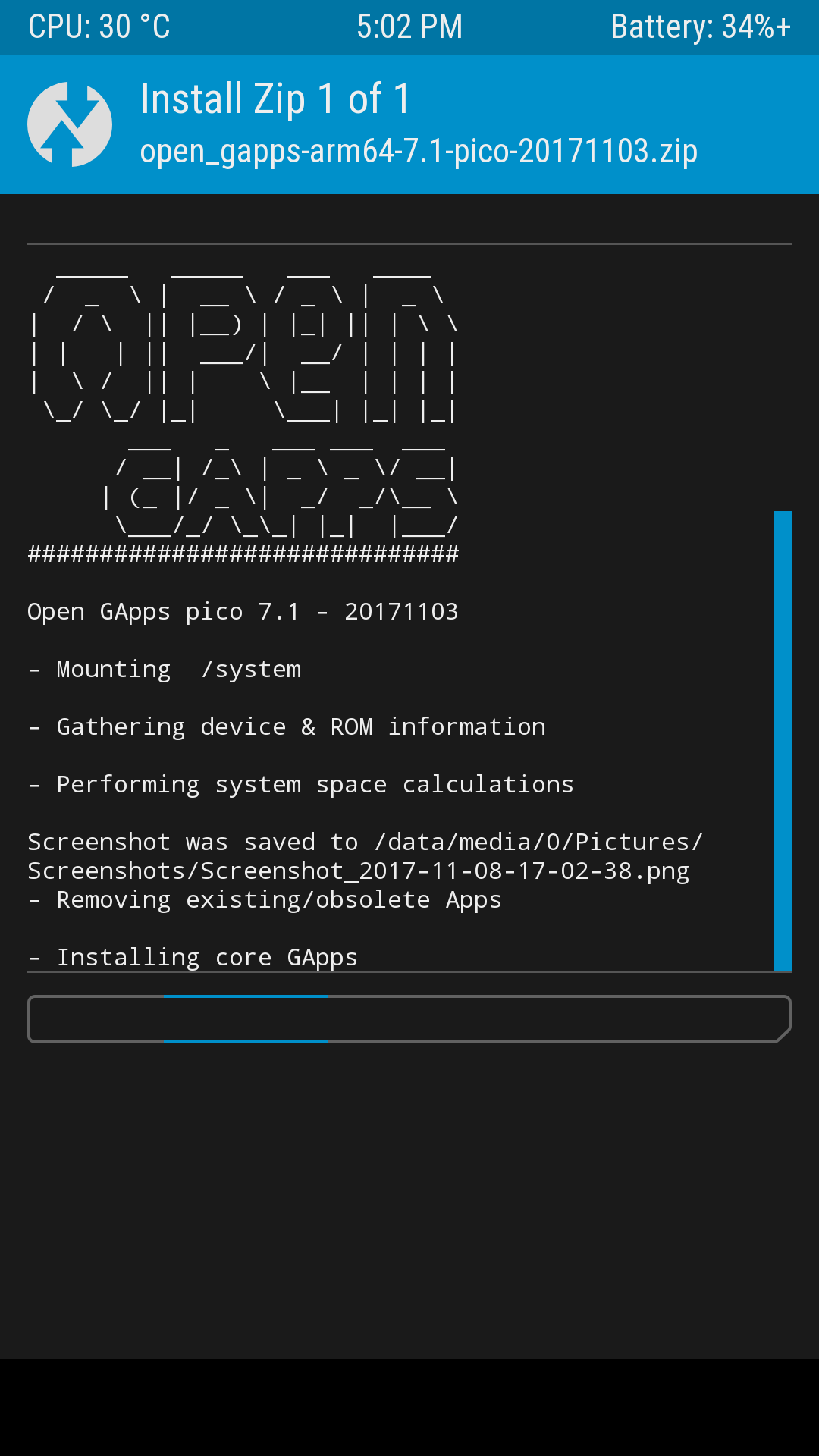
- We reboot again, and the Google Play Store is now available on our smartphone.
Message when starting the phone? Explanation
Every time the OnePlus 5 boots up, a message consistently appears letting us know we've unlocked the bootloader, which prevents it from verifying the device's security. It also slows down the smartphone's boot time, and it seems to be the same for other models like the Nexus 6p and Google's Pixel devices. Apparently, this may not be something that can be changed (to be confirmed).
Warning: Also make sure to never re-lock your bootloader while a custom ROM is installed, otherwise your smartphone will become unusable.
I speak from experience, since I tried to lock it. Nothing too serious happened, but it's annoying to have to reinstall the original bootloader, including the oxygenOS spyware.