


Arch Linux, a Desktop distribution with no limits. An incredibly performant, minimalist system. You're the one who builds it entirely.
Table of contents
Real-world use case
You've just installed Arch Linux and want to customize it to your liking: here's how to proceed.
Let's get back to Arch Linux to finish building and customizing it!
In this article we'll focus on Cinnamon, SLIM, Nemo, and the terminal.
By the end you'll learn how to:
– Configure Cinnamon, add applets, desklets, and themes.
– Configure SLIM, add themes.
– Configure Nemo and add bookmarks, templates.
– Add Archey to your terminal.
Cinnamon
Cinnamon is a desktop environment, initially developed by Linux Mint.
It's a fork of GNOME Shell.
Cinnamon's data files:
/usr/share/cinnamon
Cinnamon's user data files:
~/.local/share/cinnamon
The cinnamon-settings tool lets you change all of Cinnamon's configuration.
To do this, just click the Menu and select the gear icon, or right-click on the taskbar, choose "preferences" then "all settings".
Changing the icon pack
Installing the Faenza icon pack.
pacman -S faenza-icon-theme
To enable the icon pack, just go to "themes" then "more settings" and "icons".
How do I get a second taskbar?
You'll need to switch to advanced mode in order to enable this feature.
So switch to "advanced mode" and select "panel" under "preferences".
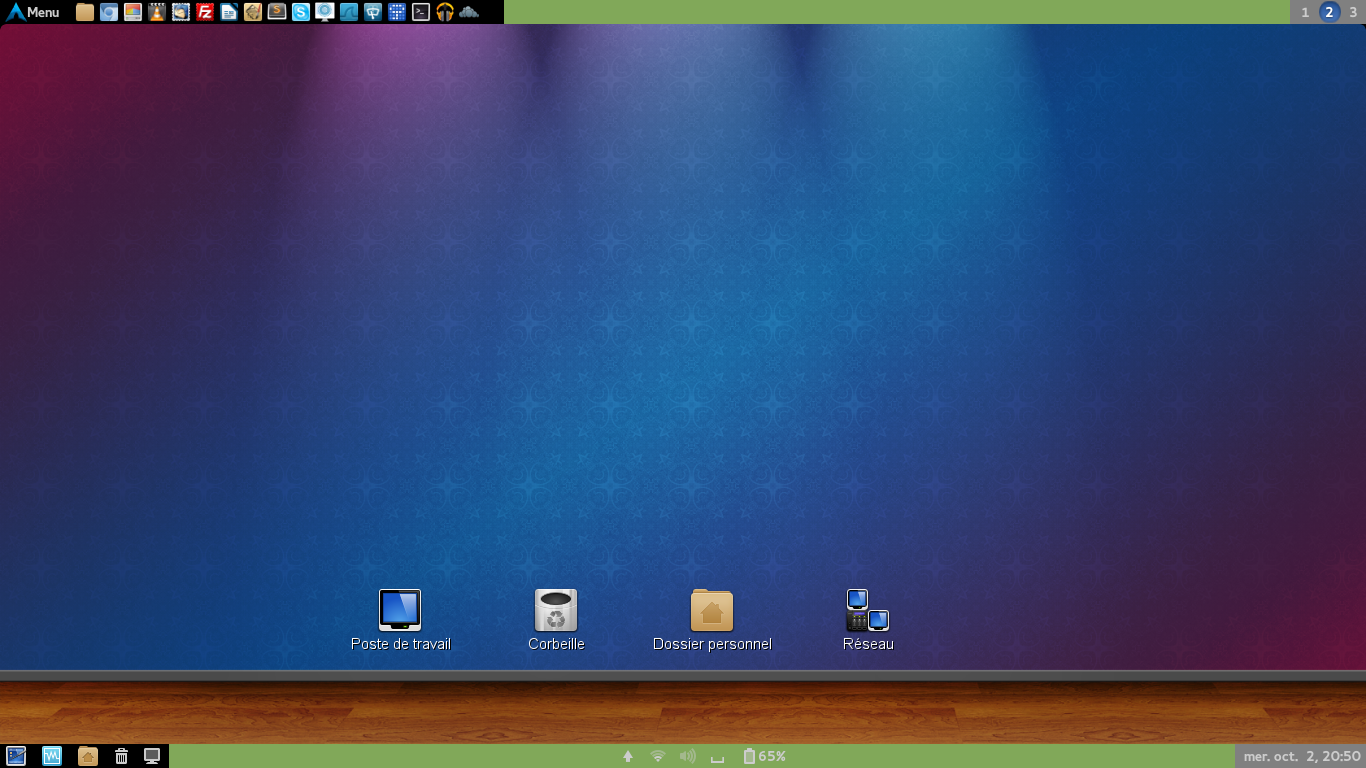
The panel is in classic mode to have a taskbar at the top and bottom.
For inspiration, here's my panel's basic configuration.
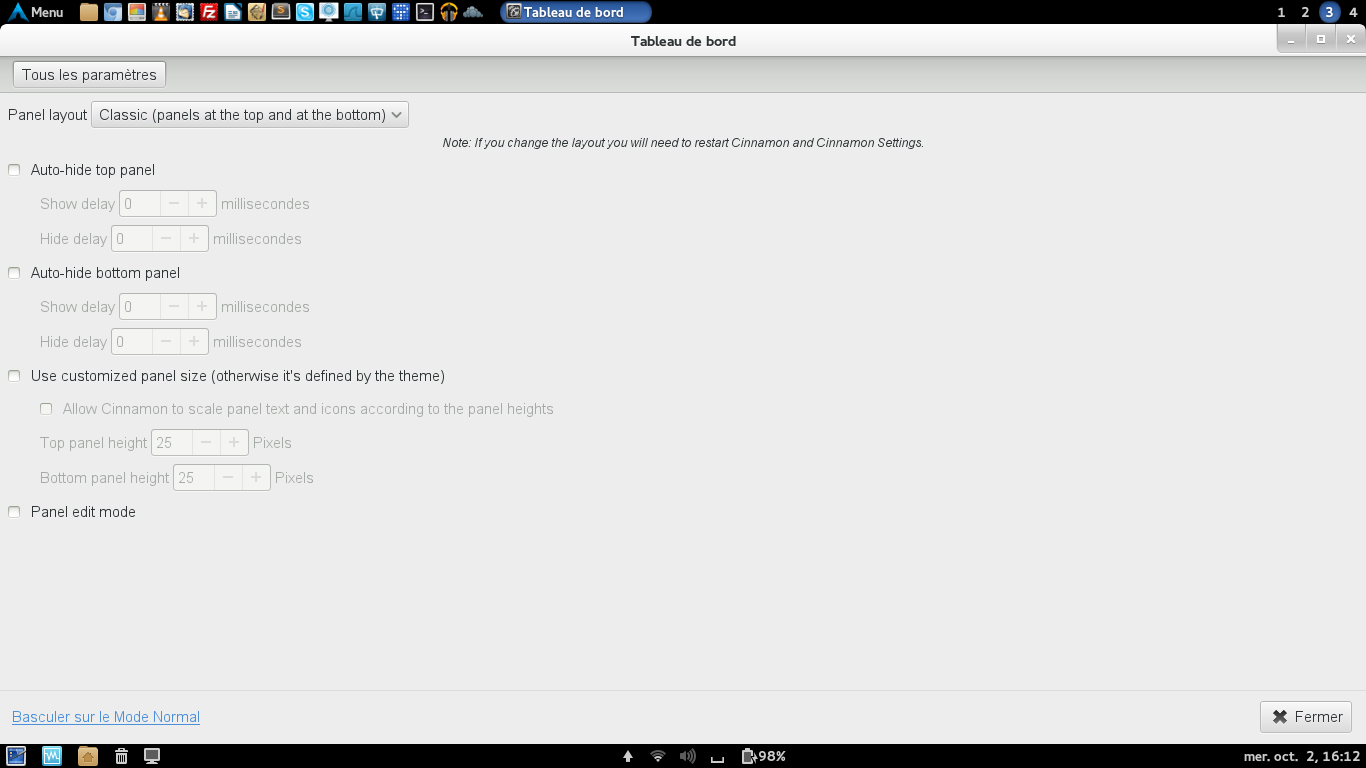
Don't forget to restart your Arch Linux for the changes to take effect.
How to add applets
Applets are really handy, and there's an incredible variety of them.
Select the Applets icon under "preferences".
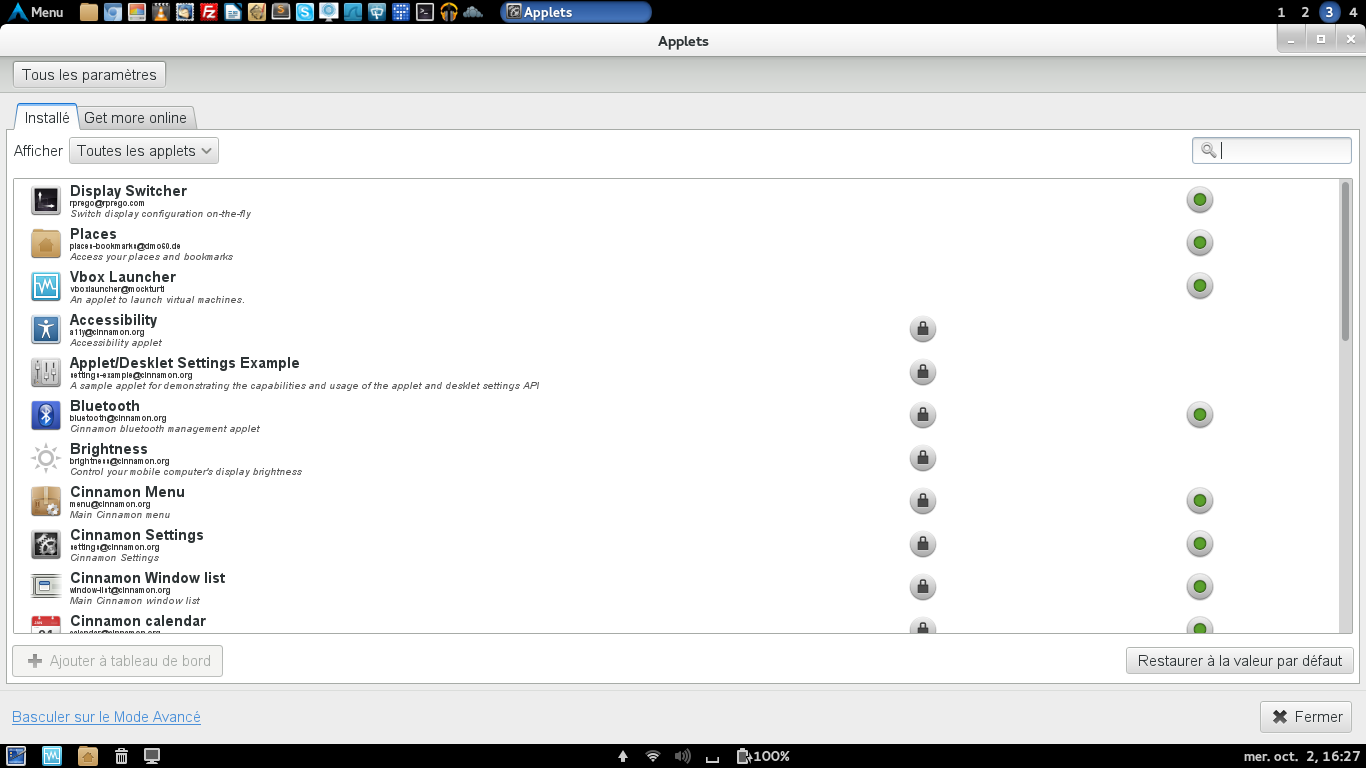
Under the "installed" tab, these are the base applets. We'll use the "get more online" tab. Example with GitHub Explorer: check the box at the bottom and "install or update."
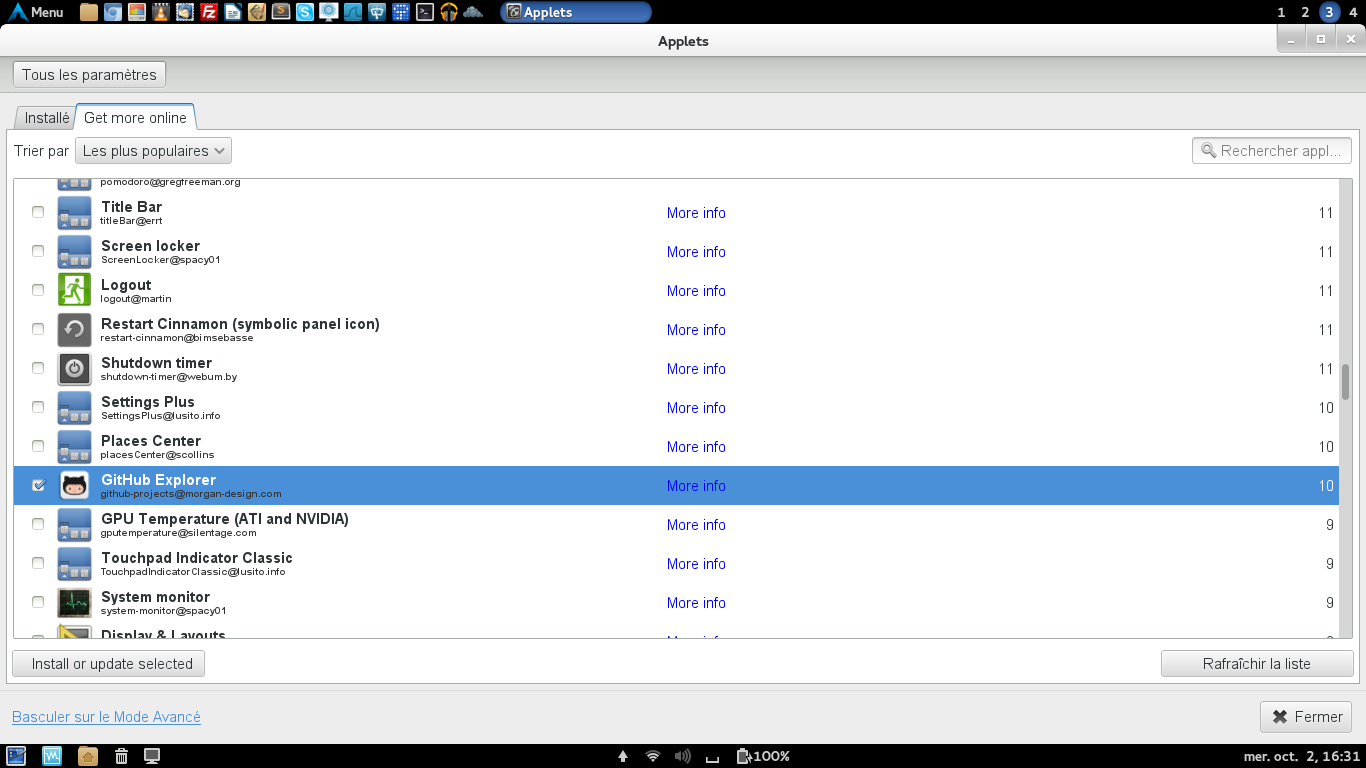
To see all the available applets, check out: available Cinnamon applets.
How to add desklets?
The method is similar to applets, except you'll need to select "desklets".
All the desklets are available at this address: available Cinnamon Desklets.
How to add extensions?
Extensions let you customize Cinnamon even further.
For example, you can get Windows's famous ALT + SHIFT!
If you're tempted by this kind of customization, visit LinuxCore's website.
To follow along, head to Cinnamon Extensions.
How to add themes?
Themes are accessible from the configuration panel under "appearances" and "themes".
I can only recommend Minty and Faience+, which are available on the official website.
How to set an angle for the multi-screen grid?
The "hot corners" mode lets you choose the placement of the different virtual desktops.
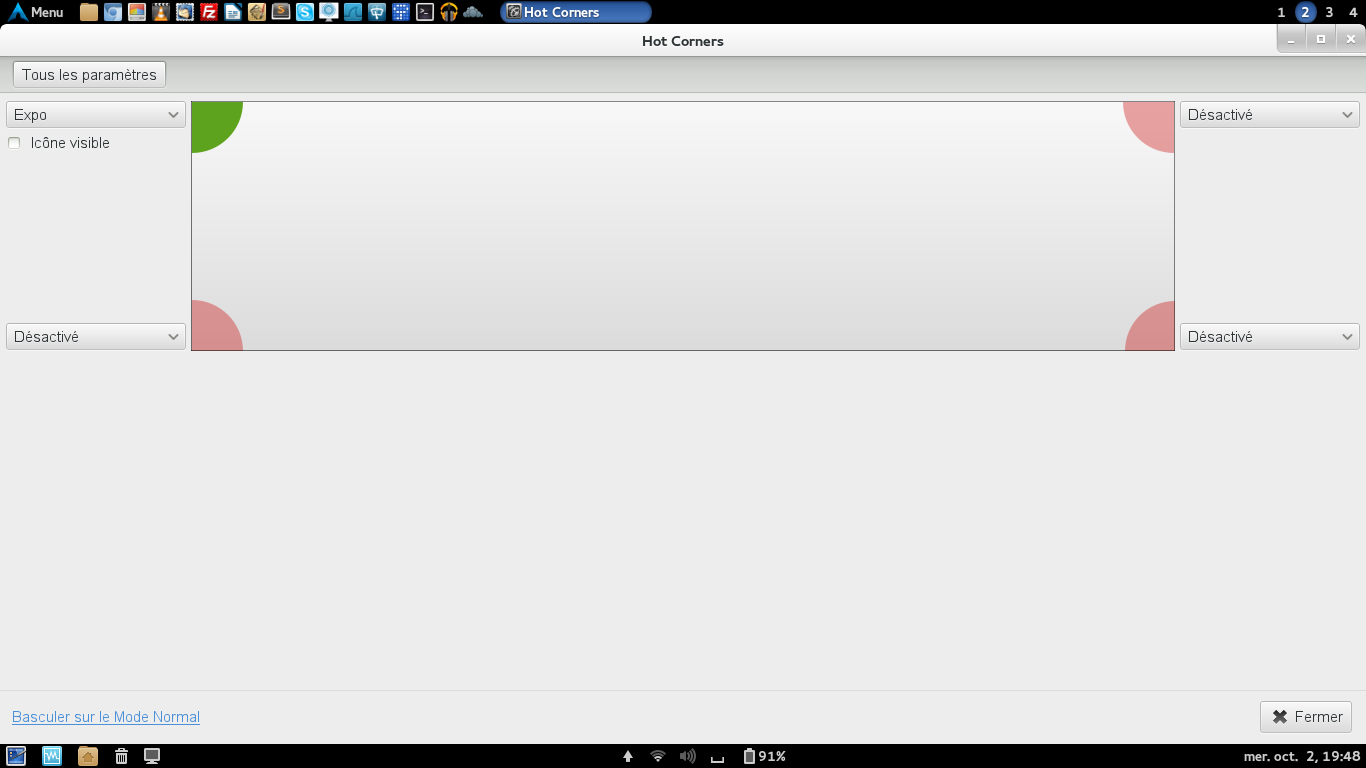
To change how virtual desktops are displayed:
You can change how virtual desktops are displayed, in grid mode.
To do this, just click on workspace and check Display Expo View as a grid.
Changing applet layout
Just right-click on any panel and choose "edit mode".
Enjoy customizing your applets within your different panels.
Customizing the Cinnamon Menu
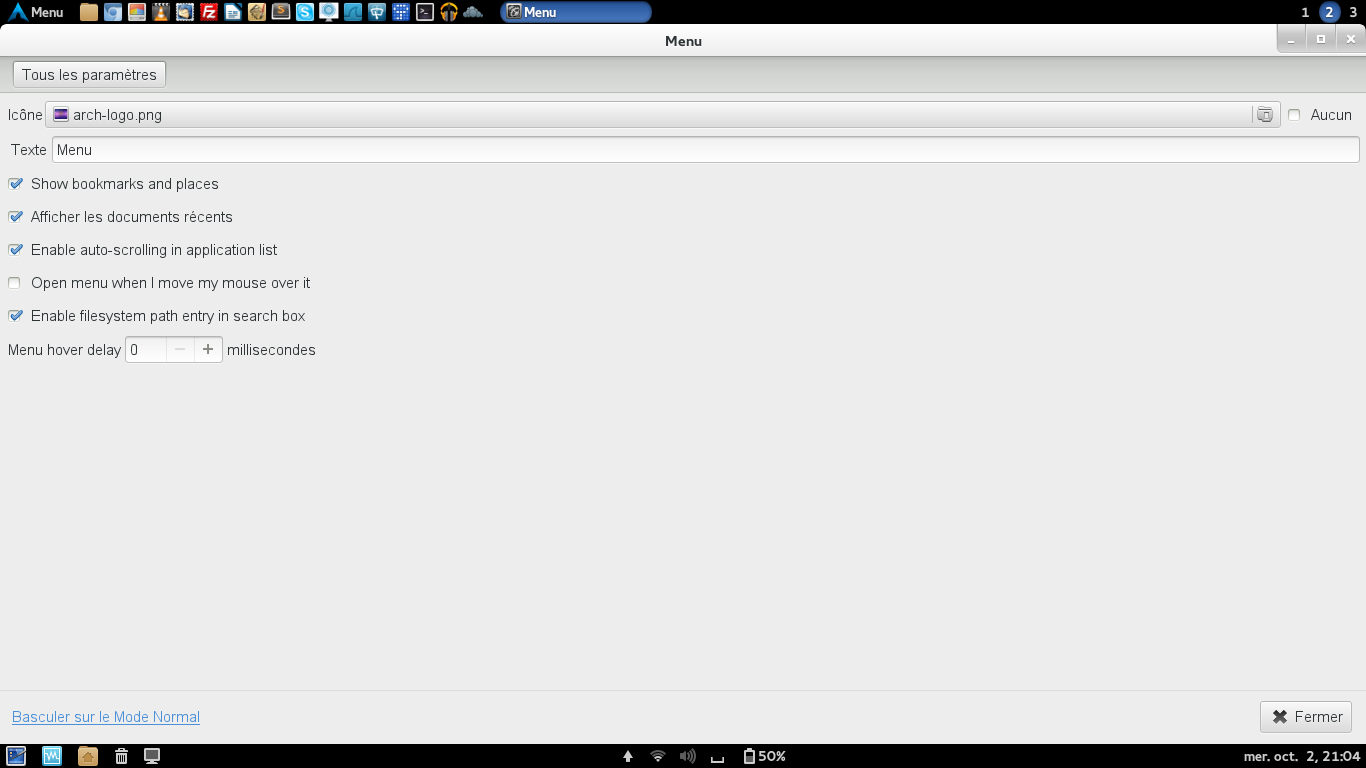
Still in the panel, under the "preferences" section, select menu.
On this interface, you'll be able to change the icon, the menu name, and other settings.
Here's my menu and its configuration, the icon is available online: archlinux.ico
Font for our Arch Linux
I use a Microsoft Arial font available on the AUR repository: ttf-microsoft-arial.
yaourt -S ttf-microsoft-arial
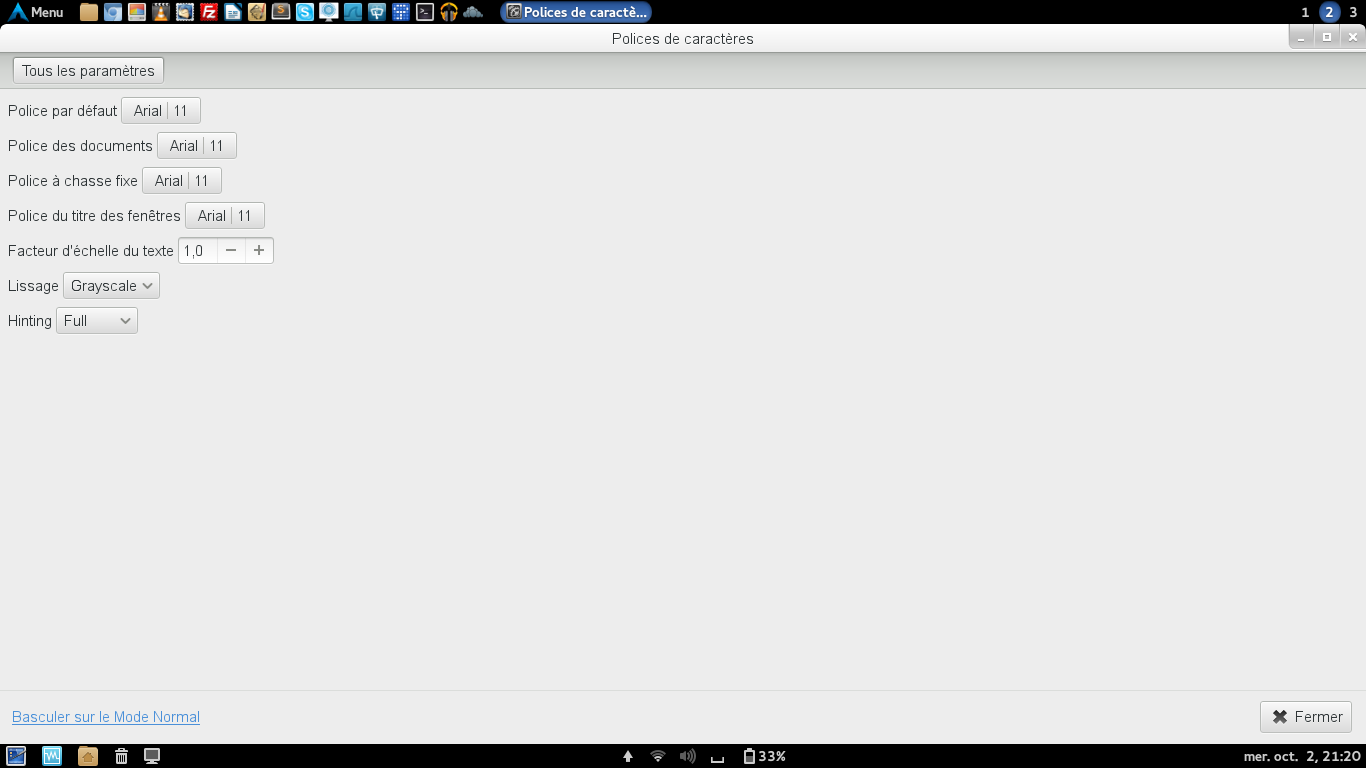
Now all that's left is to head to fonts and set it:
Feel free to discover more about Cinnamon, this article was just a first approach.
To learn more, check out the official forum at this address.
Slim
Slim, the simple, lightweight connection manager, as described in the official wiki.
We're going to change the base theme, still with the goal of customizing our Arch Linux.
Slim's configuration files:
/etc/slim.conf
Installing several themes:
pacman -S archlinux-themes-slim
To preview our future theme:
slim -p /usr/share/slim/themes/archlinux-simplyblack/
In slim's configuration file, change the line: current_theme
current_theme archlinux-simplyblack
Automatic login for slim with a user:
default_user my_account
auto_login   yes
Don't forget we configured .xinitrc so Slim could start into Cinnamon.
For more information about slim, check out the official wiki.
Nemo
To better understand the Nemo project, I strongly recommend this article.
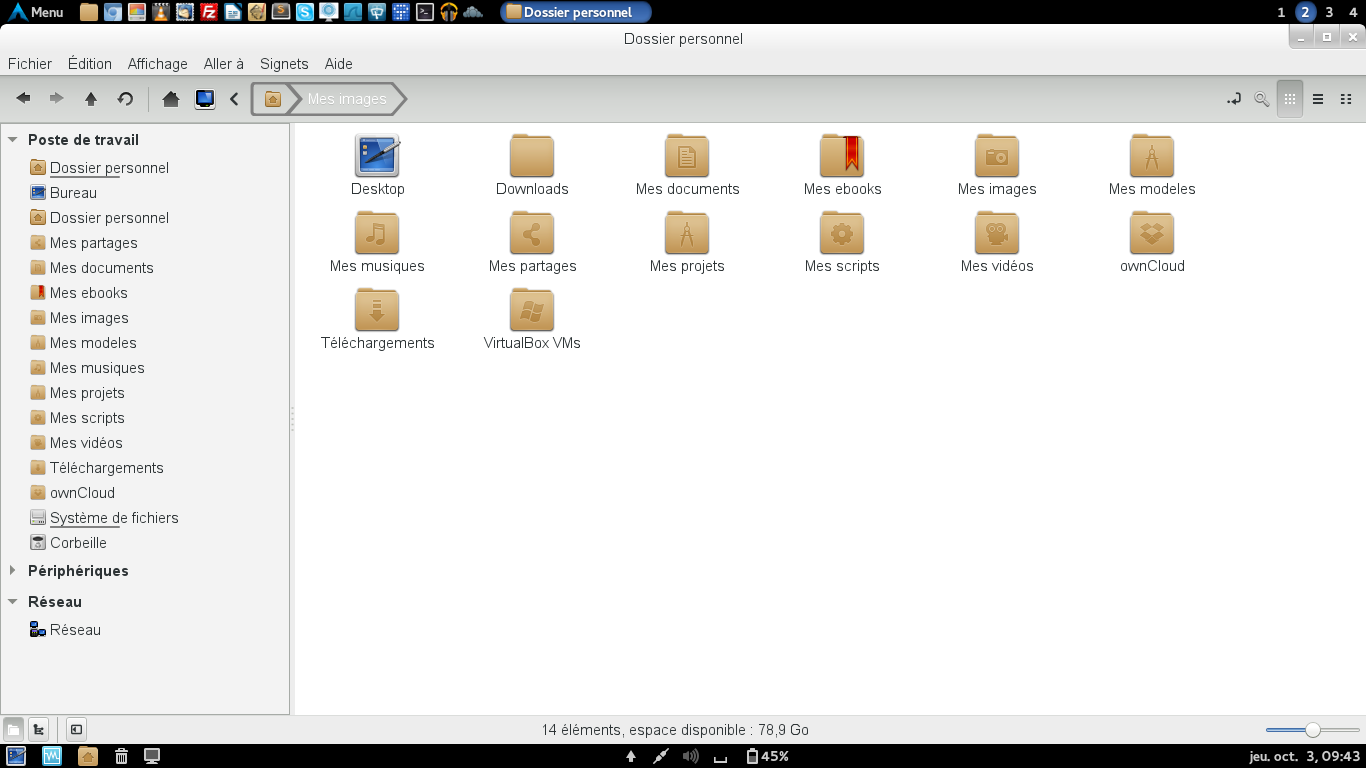
A visual of my Nemo configuration:
How to get bookmarks?
Press CTRL+D, or simply go to the bookmarks menu then "add a bookmark".
The "personal documents" bookmark appears like this in your shortcuts:

We'll simply rename it by right-clicking then "rename".
It's a shortcut, which means it needs to point to a path.
Creating the folder and adding the path to the bookmark
Right-click on the free space in the home folder, then create a new folder.
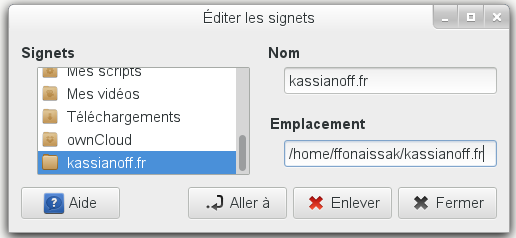
We'll create the folder: kassianoff.fr.
Then, we'll assign it to the bookmark we just created, which is kassianoff.fr.
CTRL+B or the "edit bookmarks" menu, choose your bookmark then add it to the path:
Adding templates in Nemo
To get the "create a new document" shortcut:
mkdir /home/my_account/Templates
Add all your templates inside the Templates folder.
Subfolders are taken into account, all you need to do is right-click.
The terminal
The terminal used is gnome-terminal. We're going to add a small addon: Archey
Archey lets you get your distribution's ASCII logo and some system information.
The terminal is customized in your user's .bashrc.
To install Archey:
pacman -S archey
Archey's configuration is located in:
/usr/bin/archey
You can modify the ASCII art inside it for more customization.
To add it to your terminal, open your .bashrc file and add at the end: archey
nano ~/my_account/.bashrc
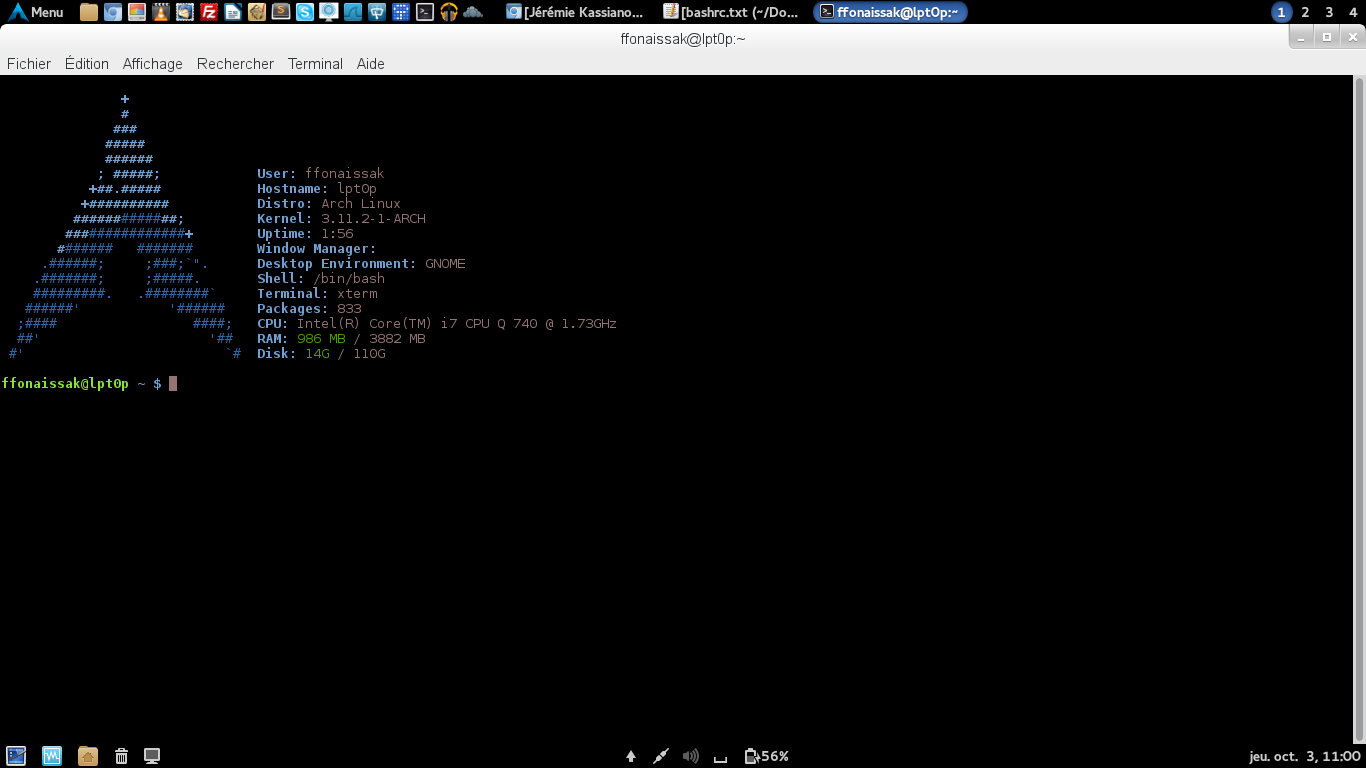
To get a color scheme in your terminal, I recommend following this link: openclassroom
You've reached the end of the Arch Linux configuration with Cinnamon, SLIM, Nemo, and the terminal.
I hope this makes you want to keep going with Arch Linux.
Share your thoughts!