


Vyatta lets you configure remote access: PPTP, L2TP/IPSEC, OpenVPN. This article focuses on Vyatta's remote-access. Requirement: know the basics.
Table of contents
Real-world use case
Your teams need to connect remotely and securely: here's how to configure PPTP, L2TP/IPSEC, and OpenVPN access with Vyatta.
Vyatta: Remote access (VPN)
VPN relies on a tunneling protocol; it encapsulates the data to be transmitted.
Vyatta lets us deploy VPN solutions: remote access and site to site.
In this article, we'll only deploy VPN remote access solutions.
It lets data pass from one end of the VPN to the other securely (encryption).
A VPN tunnel follows these principles:
– Confidentiality: The data can't be seen in a readable format.
– Integrity: The data can't be modified.
– Authentication: the VPN gateways are certain of each other's identity.
What is remote access?
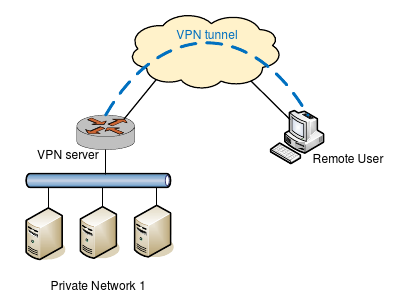
- Remote access lets a client (remote user) connect to a remote network (VPN server).
PPTP
The principle behind the PPTP protocol (point-to-point tunneling protocol) is to create frames under the PPP protocol and encapsulate them in an IP datagram.
Setting up PPTP with Vyatta:
set vpn pptp remote-access authentication mode local
set vpn pptp remote-access dns-servers server-1 8.8.8.8
set vpn pptp remote-access client-ip-pool start 172.168.0.10
set vpn pptp remote-access client-ip-pool stop 172.168.0.15
set vpn pptp remote-access authentication local-users username jeremie password p4ssw0rd
I don't recommend using this protocol in a professional environment.
For more information, visit this website and this one.
L2TP/IPSEC
L2TP is similar to PPTP, since it encapsulates PPP frames as well as other frames.
It uses a series of L2TP messages to maintain the tunnel.
L2TP is the combination of L2F and PPTP; L2F was gradually replaced by L2TP.
UDP sends the PPP frames within L2TP.
Setting up L2TP with Vyatta:
set vpn l2tp remote-access description "my l2tp"
set vpn l2tp remote-access authentification mode local
set vpn l2tp remote-access outside-address X.X.X.X/X (your public IP)
set vpn l2tp remote-access dns-servers server-1 (your DNS server)
set vpn l2tp remote-access client-ip-pool start 172.168.1.10
set vpn l2tp remote-access client-ip-pool stop 172.168.1.15
set vpn l2tp remote-access authentication local-users username jeremie password p4ssw0rd
Setting up L2TP/IPSEC with Vyatta:
set vpn ipsec ipsec-interfaces interface eth0
set vpn ipsec nat-traversal enable
set vpn ipsec nat-networks allowed-network 0.0.0.0/0
set vpn l2tp remote-access ipsec-settings authentication mode pre-shared-secret
set vpn l2tp remote-access ipsec-settings authentication pre-shared-secret g00d-p4ssw0rd
IPSEC is often paired with L2TP, which on its own isn't secure.
IPSEC secures the IP protocol in order to guarantee the confidentiality, integrity, and authentication of the exchanges.
OPENVPN
OpenVPN is an open-source tunneling solution; it uses the OpenSSL library.
Among other things, it's an excellent solution for getting around certain network restrictions.
OpenVPN generates security certificates.
Copy the OpenVPN examples to /etc/openvpn/easy-rsa/:
cp -r /usr/share/doc/openvpn/examples/easy-rsa/2.0/* /etc/openvpn/
Move into the easy-rsa folder and generate the server certificates!
cd /etc/openvpn/
source vars
./clean-all
./build-ca
./build-key-server myservername
./build-dh
cd keys
cp myservername.crt myservername.key ca.crt dh1024.pem /config/auth
Generate our client's certificate:
cd /etc/openvpn/
./build-key jeremie
==> Enter
==> y
==> y
Setting up the OpenVPN server with Vyatta:
set interfaces openvpn vtun0
set interfaces openvpn vtun0 encryption aes256
set interfaces openvpn vtun0 hash sha1
set interfaces openvpn vtun0 mode server
set interfaces openvpn vtun0 local-port 1194
set interfaces openvpn vtun0 protocol udp
set interfaces openvpn vtun0 server push-route 192.168.0.0/24
set interfaces openvpn vtun0 server subnet 172.168.0.0./16
set interfaces openvnp vtun0 tls ca-cert-file /config/auth/ca.crt
set interfaces openvpn vtun0 tls cert-file /config/auth/myservename.crt
set interfaces openvpn vtun0 tls dh-file /config/auth/dh1024.pem
set interfaces openvpn vtun0 tls key-file /config/auth/myservername.key
Using remote access is simple, practical, and cost-effective!
Conclusion
I've presented three VPN remote access solutions under Vyatta here: PPTP, L2TP/IPSEC, and OpenVPN. While PPTP remains simple to set up, it isn't recommended in a professional environment due to its security weaknesses, unlike L2TP/IPSEC or OpenVPN, which offer robust encryption. OpenVPN, with its certificate generation, remains the simplest, most practical, and most cost-effective solution to deploy.