


Firefox Sync on your personal server! Configuring Firefox Sync with SQLite/MySQL on Debian 7. Requirement: have Firefox and Debian 7.
Real-world use case
You want to sync your Firefox data without relying on Mozilla's servers: here's how to install your own Firefox Sync server.
Mozilla offers a performant, free "Sync" service on their own servers, but Mozilla also gives us the option to create our own personal sync server.
In this article, the personal Firefox Sync server is installed on Debian 7.
Introduction to Firefox Sync
A personal Firefox Sync server lets you back up your entire Firefox browser configuration via synchronizing the following items:
- Bookmarks
- Browsing history
- Preferences
- Passwords
- Pre-filled forms
- Recently opened tabs
- Add-ons
Your entire configuration will now stay with you, and your data is in your hands.
Handy if you have several devices (smartphone, laptop, desktop PC)!
Installing Firefox Sync
Downloading the prerequisites:
apt-get install python-dev mercurial sqlite3 python-virtualenv libssl-dev
Downloading the personal Firefox Sync server:
cd /var/www/
clone https://hg.mozilla.org/services/server-full
cd server-full
make build
Running a test to make sure everything works:
make test
Configuring Firefox Sync:
Head to the configuration file:
nano etc/sync.conf
The lines to change are:
[nodes]
fallback_node = http://your_dns_name:5000/
storage
sqluri = sqlite:////path/to/your_database/file_name.db
auth
sqluri = sqlite:////path/to/your_database/file_name.db
By default, the Firefox Sync server uses SQLite, but if you want to use MySQL, here's the procedure:
Installing MySQL:
apt-get insall mysql-server
Adding a database in MySQL:
# mysql -u root -p
mysql> create database ffsync;
mysql> grant all on sync.* to sync identified by 'my_password';
mysql> flush privileges;
mysql> exit;
Installing "mysql-python" in the server-full folder:
bin/easy_install Mysql-Python
Changing the configuration file for MySQL:
[nodes]
fallback_node = http://your_dns_name:5000/
storage
sqluri = mysql:////ffsync:my_password@localhost/ffsync
auth
sqluri = mysql:////ffsync:my_password@localhost/ffsync
End of the configuration file setup with MySQL.
In your configuration file, the following line allows user creation:
(As soon as your users are added, I recommend quickly setting it to "false".)
 [auth]
allow_new_users=true
Sending an email for Firefox Sync password recovery:
 [smtp]
host = localhost
port = 25
sender = [email protected]
Starting the Firefox Sync server:
bin/paster serve development.ini
==> Starting server in PID 29951.
==> serving on 0.0.0.0:5000 view at http://127.0.0.1:5000
The server is working! However, the task needs to be started manually.
Let's see how to automate the task with a system startup script.
Creating a group and a user to launch the script:
Creating a group to launch Firefox Sync:
groupadd sync
Creating a user in the "sync" group to launch Firefox Sync:
useradd -d /var/www/server-full -g sync -r -s /bin/bash firefox
Creating a log folder for firefox:
mkdir /var/log/firefox
Granting permissions on the "server-full" and "/var/log/firefox" folders:
chown -R firefox:sync /var/www/server-full && chown -R firefox:sync /var/log/firefox
Creating the Firefox Sync startup script:
nano /etc/init.d/ffsync.sh
Write the following in the file:
 #!/bin/bash

### BEGIN INIT INFO
# Provides:          Mozilla Sync HomeServer
# Required-Start:    $syslog $network
# Required-Stop:     $syslog $network
# Default-Start:     2 3 4 5
# Default-Stop:      0 1 6
# Short-Description: Mozilla Sync HomeServer initscript
# Description:       Mozilla Sync HomeServer
### END INIT INFO
MESSAGELOG=/var/log/firefox/sync-messages.log
PID=`pidof -x -o %PPID paster`
case "$1" in
  start)
    echo "Starting Mozilla Sync HomeServer"
    [ ! -d $MESSAGEDIR ] && mkdir -p $MESSAGEDIR
    su firefox -c "cd /var/www/server-full/ && bin/paster serve development.ini &>$MESSAGELOG &"
    ;;
  stop)
    echo "Stopping Mozilla Sync HomeServer"
    kill $PID &>/dev/null
    ;;
  restart)
    $0 stop
    $0 start
    ;;
  *)
    echo "usage: $0 {start|stop|restart}"
esac
exit 0
Making the script executable:
chmod +x ffsync.sh
Adding the script to system startup:
insserv ffsync.sh
To run a test, nothing beats a system reboot!
To make sure the startup is working:
netstat -tan
=> tcp  0  0 0.0.0.0:5000  0.0.0.0:*               LISTEN
Configuring the Firefox Sync client
On Windows, press the "ALT" key and, in the "tools" menu bar, click "set up sync":
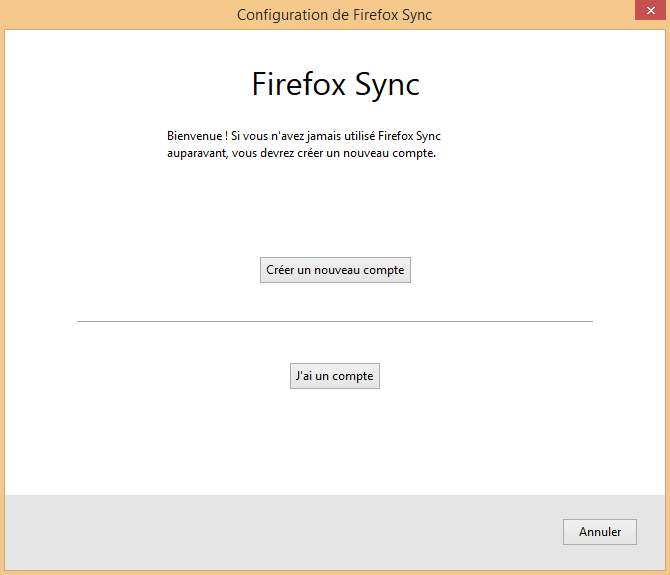
Select "create a new account" (example):
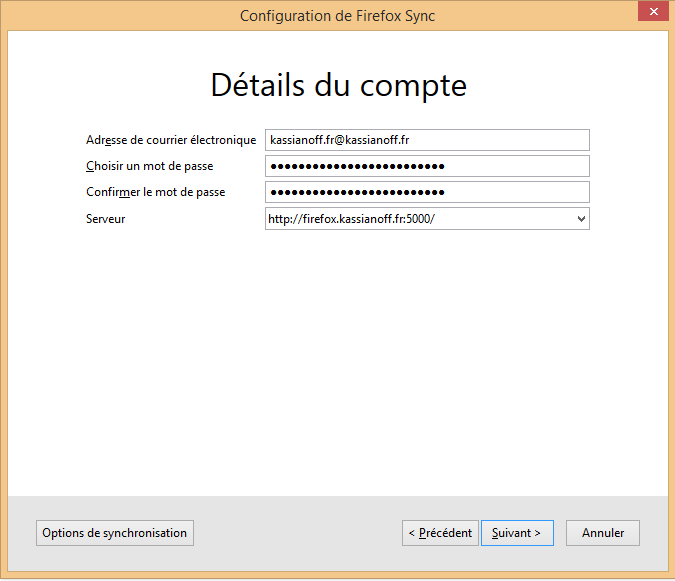
That's it! Don't forget to disable user registration in the configuration file.
The logs will tell you about any problems that come up (/var/log/firefox/).
Enjoy your Firefox Sync server.
Conclusion
I've detailed here setting up a personal Firefox Sync server on Debian 7, with the choice between an SQLite or MySQL database, as well as creating a script to automatically start the service. Self-hosting your browser sync lets you keep control over your bookmarks, passwords, and history rather than depending on Mozilla's servers. Once the account is created on the client side, I recommend quickly disabling open registration for new users to secure the server.