

VMware ESXi 5 and virtual networking. Your first steps into virtual networking! Understanding VLAN IDs in VMware ESXi.
Real-world use case
You need to design the virtual network of a VMware ESXi 5 host: here are the virtual networking best practices you need to know.
This article only covers the features available in the free version of VMware ESXi5.
I encourage you to use virtual networking regardless of your hypervisor.
The free version of ESXi will limit us in terms of our virtual network's features.
Understanding virtual networking
A virtual network (Vnetwork)
A virtual network is a network of virtual machines running on a single physical machine.
They're connected to each other just like on a standard physical network.
Virtual machines (VMs) can be added to several virtual networks.
The standard virtual switch (vSwitch)
A vSwitch can be connected to one or more physical switches.
A virtual switch behaves the same way as a traditional switch.
You can assign it one or more network interface cards.
However, a vSwitch doesn't have the advanced features found on a physical switch.
Port groups in a standard virtual switch
Port groups in a virtual switch let VMs connect to each other.
Ports on vSwitches are identical to ports on physical switches and can be managed.
By default, there are 120 ports available per vSwitch, meaning that many VMs can be connected.
A VMkernel network
A VMkernel network interface is used for vMotion, IP storage, and Fault Tolerance.
It's a port group dedicated to managing our host.
Explaining our basic virtual network
We have 5 virtual machines:
- core.vyatta.master
- core.vyatta.slave
- srv.owncloud
- srv.zimbra
- srv.zpush
Networking settings are found under "configuration" and "networking" in your hypervisor.
By default, our networking looks like this:
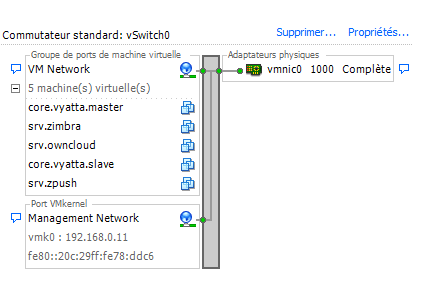
What can we say about the VMs' port group?
The virtual machines are on the same Vnetwork and connected through the same vSwitch.
The physical adapter "vmnic0 1000" is assigned to the vSwitch.
The port group doesn't use a VLAN ID, meaning the value is "0".
What can we say about the VMkernel port?
Our ESXi's management interface sits in the Management Network and is connected via the VMkernel port to the physical adapter "vmnic0 1000".
Here too, there's no VLAN ID in this virtual network.
Creating a network
Click "Add Networking" (top right).

Then select the network type:
– Virtual Machine to create a new Vnetwork containing VMs.
– VMkernel for ESX(i) services: vMotion, iSCSI, NFS, …
Now choose which vSwitch this Vnetwork should be connected to.
For the 1st one, select a VLAN ID of 4095.
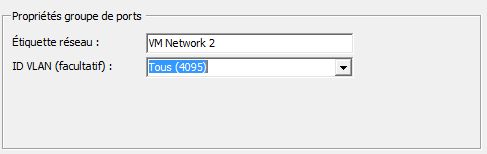
To edit an existing vSwitch, click "properties" at the top right of it.
You can change the number of ports on a switch, configure a VLAN on a network, and so on…
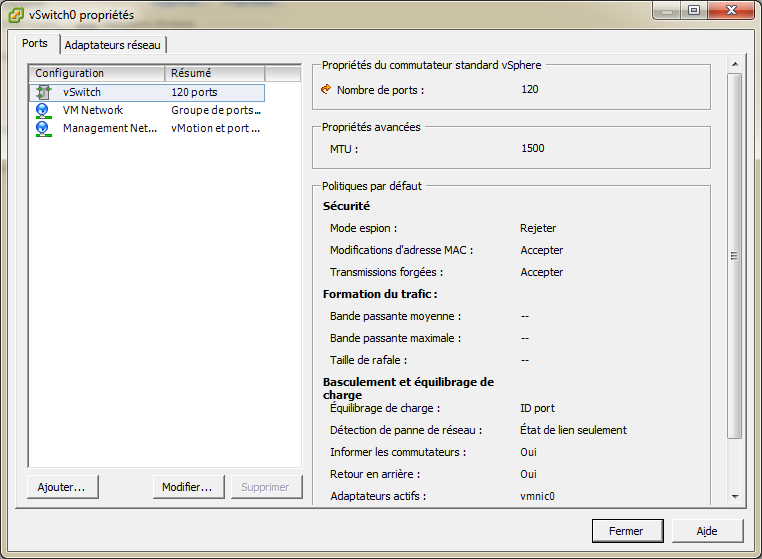
An optimized network setup with VLAN IDs:
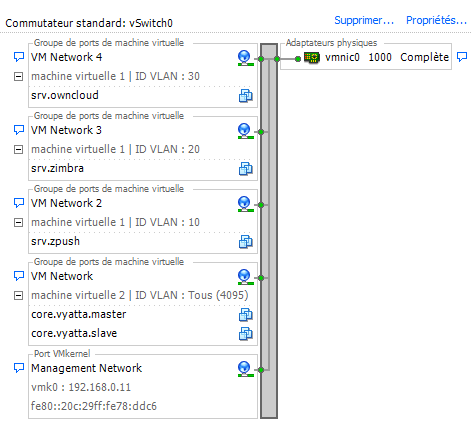
I chose to tag the VLANs this way:
- VM NETWORK – VLAN ID: All (4095)
- VM NETWORK 2 – VLAN ID: 10
- VM NETWORK 3 – VLAN ID: 20
- VM NETWORK 4 – VLAN ID: 30
The "all" VLAN ID lets tagged IP frames be forwarded for each VLAN.
Vyatta will build IP packets tagged as VLAN 10, 20, or 30 to reach the machines.
Conclusion
This article lays the groundwork for virtual networking on the free version of VMware ESXi 5: virtual network, vSwitch, port groups, and the VMkernel interface. It then covers creating a new network and using VLAN IDs to segment traffic between several virtual machines, in particular with Vyatta, which needs to tag frames according to the target VLAN. This configuration remains limited to the features available in the free version of ESXi. It provides a good introduction before moving on to more advanced network configurations.