


Adding iSCSI storage in VMware ESXi. Creating and configuring an iSCSI RPN-SAN. Example of an online.net infrastructure.
Real-world use case
Your VMware ESXi cluster is running out of storage space: here's how to add iSCSI RPN-SAN storage to easily extend it.
This article introduces you to integrating an iSCSI network storage with free VMware ESXi.
The dedicated server is hosted at online.net.
The configuration steps:
- Creating and configuring a VMKERNEL for iSCSI.
- ESXi security profile to enable SSH.
- Editing the /etc/vmware/esx.conf file.
- Finding your RPN-SAN's gateway.
- Finalizing the VMKERNEL configuration for iSCSI.
- Configuring the storage adapter.
- Adding your LUN storage.
Introduction to iSCSI:
iSCSI is a network storage protocol based on the IP protocol.
It's cost-effective compared to other technologies: Fibre Channel and SAS.
iSCSI lets you connect and manage storage that it presents over the network to hosts on the LAN.
Our ESXi will have the illusion that the storage is local, but it's remote, on a SAN.
Creating and configuring a VMKERNEL-ISCSI
Head to your ESXi management interface via the vSphere client.
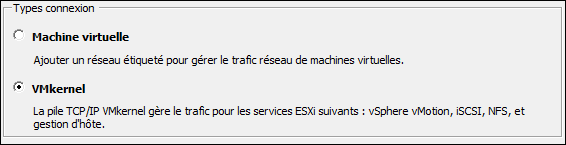
In the configuration tab, select "networking" and add "VMkernel networking":
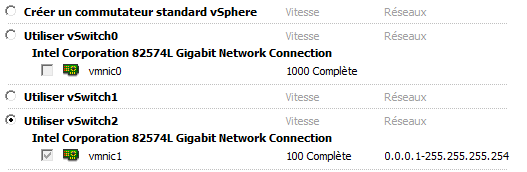
Choose the vmnic 1 network card (100mb/s):
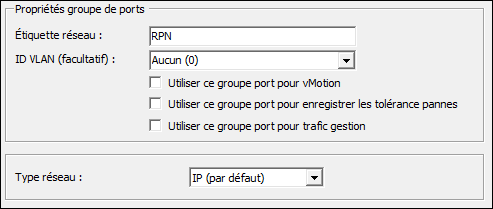
Rename your port group to: "RPN" (recommended by online.net)
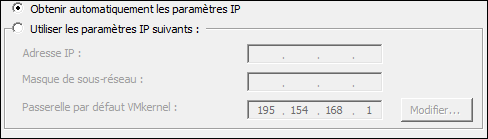
Connection settings on "automatic IP":
Don't worry, this is due to a "dynamic configuration" that we'll assign to it later.
The next step lets you finish setting up the networking for your VMkernel (RPN).
Your network card isn't enabled (a small X appears) in the networking, this is normal!
This is related to internal security at online.net (unrecognized MAC).
The MTU negotiation between the vSwitch and the RPN-SAN in "networking":
On your vSwitch2's configuration, click "properties":
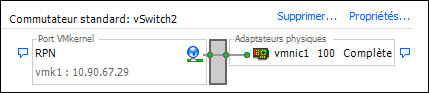
On vSwitch2, double-click, then under the "general" tab, change the MTU to: "9000" then confirm.
On the RPN, double-click, then under the "general" tab, change the MTU to the same value: "9000" then confirm.
This lets the vSwitch negotiate IP packets of the same length as the RPN-SAN.
More information on MTU: wikipedia
ESXi security profile to enable SSH
Still in the configuration tab, in the left panel "software," choose "security profile".
Enabling the SSH protocol in the ESXi firewall:
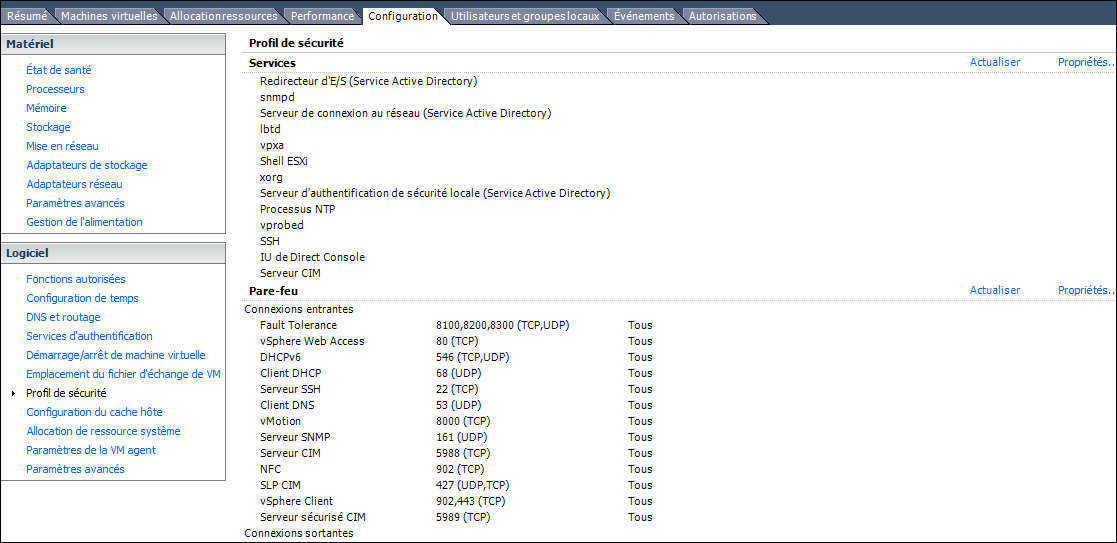
Click on: "properties" of the firewall, a window appears:
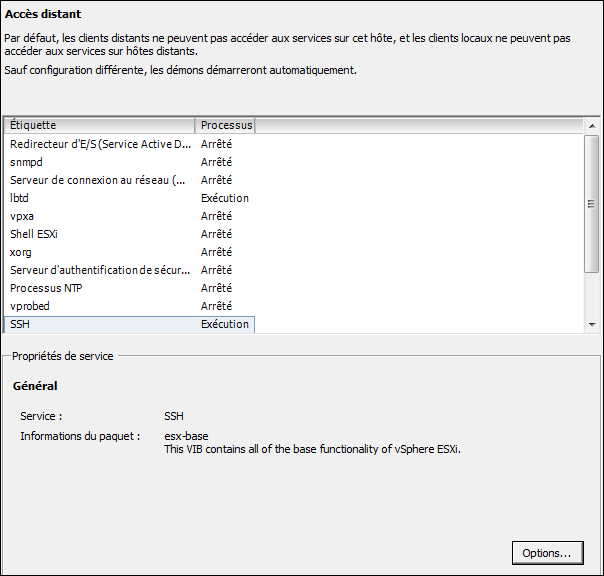
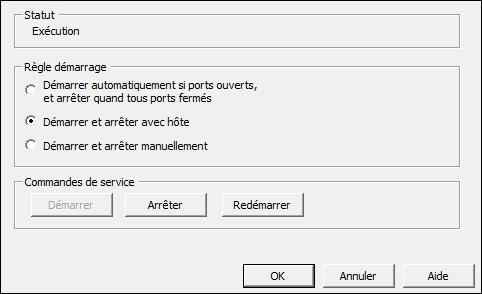
Select "SSH," then "options," and use the rule: "Start and stop with host":
To check that your SSH server has started, head to the "Summary" tab:

Editing the /etc/vmware/esx.conf file
Now we need to edit the ESXi configuration file in order to copy the RPN portgroup's MAC address into the RPN VMKERNEL's MAC so they're identical (online.net-specific procedure only).
Editing your esx.conf file:
vi /etc/vmware/esx.conf
Finding the child number of the RPN portgroup:
/net/vmkernelnic/child[0001]/portgroup = "RPN"
Finding the MAC address of the network card connected to the matching RPN:
/net/pnic/child[0001]/mac = "X0:X0:X0:X0:X0:X0”
Replacing the RPN VMKernel's MAC with the MAC of the network card connected to the RPN:
/net/vmkernelnic/child[0001]/mac = "X0:X0:X0:X0:X0:X0”
For the changes to take effect, you need to reboot your ESXi server.
Finding your RPN-SAN's gateway
Online.net doesn't share our RPN-SAN's gateway, we need to calculate it.
For this, you'll need, for example, a Linux machine and to install "ipcalc".
Installing the "ipcalc" package:
apt-get install ipcalc
Then you just need to calculate your gateway like this:
ipcalc -b [IP_RPN-SAN]/26 | grep HostMin
The command's result gives you the gateway!
HostMin: X.X.X.X
The gateway doesn't respond to ping? This is normal behavior at online.net.
Finalizing the VMKERNEL-ISCSI configuration
The last step is to use this gateway in order to communicate with the RPN-SAN.
Check your routes under ESXi:
esxcfg-route -n
Neighbor         MAC Address        Interface      Expiry
XXX.XXX.XXX.1    X2:X2:X2:X2:X2:X2  vmk0           19m55s
If you already have the second route (which looks like this):
Neighbor         MAC Address        Interface      Expiry
X.X.X.X          X0:X0:X0:X0:X0:X0  vmk1           18m14s
Then your route is already configured, and the next step doesn't apply to you!
Otherwise, follow the step below:
Add the route for the RPN subnet via the RPN gateway:
esxcfg-route -a 10.90.0.0/16 [IP_RPN-SAN]
To check that the route is correct, a simple ping test on the RPN-SAN is enough:
# ping san-1.rpn.online.net
PING 10.90.254.2 (10.90.254.2): 56 data bytes
64 bytes from 10.90.254.2: icmp_seq=0 ttl=61 time=0.241 ms
64 bytes from 10.90.254.2: icmp_seq=1 ttl=61 time=0.241 ms
Configuring the storage adapter
In your ESXi's configuration tab, go to "storage adapters" and "add," then:
Choose: "Software iSCSI Adapter" then "ok".
Then click on the "Software Adapter" named "vmhba32".
The final result looks like this:
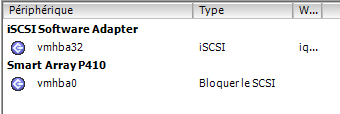
Click on "vmhba32," then at the bottom right, select: "properties".
Head to the "dynamic discovery" tab to assign it an IP address.
Click "add" and enter under "iSCSI Server": san-1.rpn.online.net (see below):
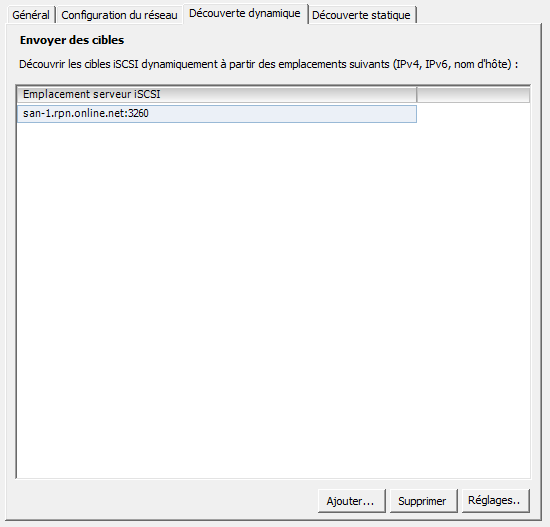
Confirm a rescan in order to see your device and your iSCSI path.
Finally, the IET disk appears:

Adding your LUN storage
In the vSphere interface, configuration tab, go to: "storage" then "add storage":
Check "Disk/LUN":
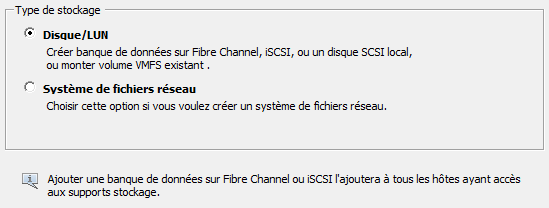
Then select your new RPN-SAN storage via iSCSI:

Check the VMFS-5 file system:
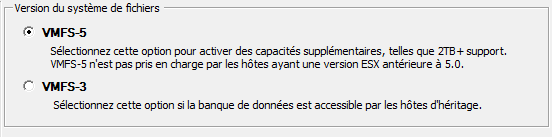
At the next step you should have:
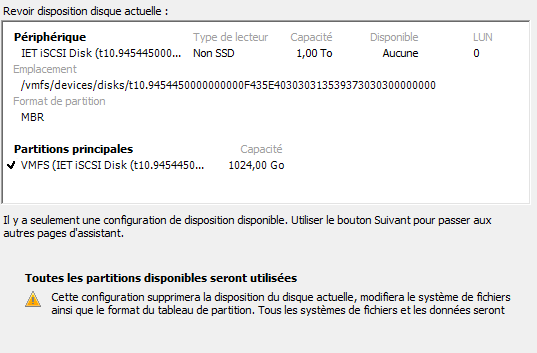
Then add a datastore name, for example: datastore-ISCSI
Formatting the disk to its maximum available capacity:

Finish adding your LUN storage over the iSCSI link:
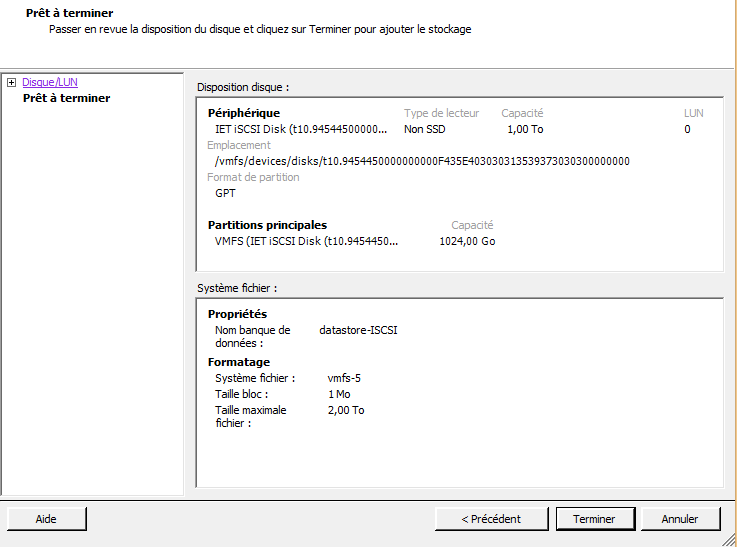
Confirm with "Finish". In the end, your LUN is available in your ESXi.

Now all that's left is to present this storage to your VMs or to use it with GhettoVCB.
The official documentation is available at this address.
Conclusion
This article details integrating an iSCSI RPN-SAN network storage at online.net with VMware ESXi, from creating the dedicated VMkernel and enabling SSH to calculating the gateway and configuring the software storage adapter. The procedure also includes editing the esx.conf file to align the MAC addresses, a constraint specific to the online.net infrastructure. The resulting iSCSI LUN can then be used as a datastore for virtual machines or for backups via GhettoVCB. This procedure remains specific to the online.net environment, but the iSCSI/ESXi principles remain transferable.