

Plex Media Server is a project derived from XBMC. Manage, organize, and stream all your media files.
Real-world use case
You want to centralize and stream your personal media library: here's how to install Plex Media Server on Debian 8.
Plex Media Server (PMS) is a partly open-source project licensed under the GPL and is very close to XBMC.
Installation is very easy and requires no particular knowledge, beginners welcome!
We'll be using support from the Plex (FR) community and its installation documentation.
This article focuses on installing Plex on a remote server with no graphical interface.
Foreword: Plex Media Server
"PMS" is compatible across various Linux distributions, with a very active community.
On the Plex download page, you get to choose your platform.

Since the sources are made available, a version compatible with Arch Linux is available on AUR.
Plex on Linux is great, but it's also available on Windows, macOS, and FreeBSD!
Installing Plex Media Server
Installing the Plex Media Server is a very quick step (a few seconds).
In my case, I didn't use the ".deb" offered on the official site, since it's intended for Ubuntu.
Here's the method used on Debian 7:
Installing "curl":
apt-get install curl
Add the mirror to the "sources.list.d" folder:
echo "deb http://shell.ninthgate.se/packages/debian jessie main" | tee -a /etc/apt/sources.list.d/plexmediaserver.list
Download the mirror's "APT" key with "curl":
curl http://shell.ninthgate.se/packages/shell.ninthgate.se.gpg.key | apt-key add -
Sync the mirrors:
apt-get update
Install "Plex Media Server":
apt-get install plexmediaserver
Check that the "Plex" process is running:
ps aux | grep plex
root     15937  0.0  0.0   4052   816 pts/0    S+   10:23   0:00 grep --color=auto plex
A "Plex" user is automatically created for the server to run.
The rest of the installation requires a local web browser, which I don't have!
As a reminder, in my case I'm not using a graphical interface.
Accessing "PMS" without a graphical interface
Plex will need to continue the installation (only) on localhost at:
http://localhost:32400/web
So without a graphical interface, it's impossible to continue the installation.
However, there's a very simple method: an SSH tunnel can work around this problem.
Method for Windows:
Download "PuTTY" software (link), and follow these instructions:
Launch PuTTY and fill in the "host name or IP" and "Connection type" fields.
Save your configuration with "Save": don't forget to give it a name.
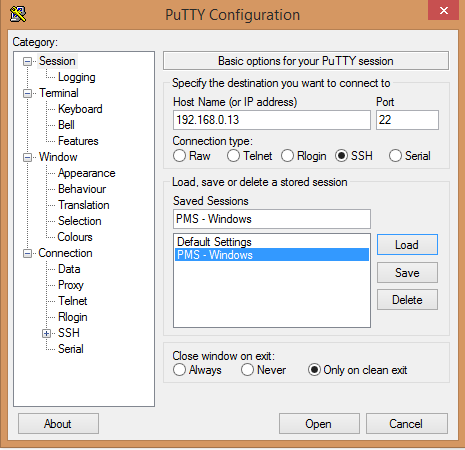
Then go to the menu on the left side, then: "Connection/SSH/Tunnels".
Set up your tunnel, then click "Add":
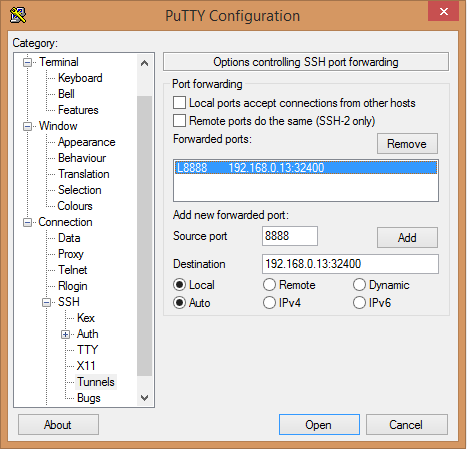
Connect by clicking "Open"!
Method for Linux:
Run the following command in the terminal of your favorite Linux distribution:
ssh root@your_ip -L 8888:localhost:32400
Once connected to the remote server hosting the "PMS" server,
open your favorite web browser (in my case Firefox) and go to the URL below:
http://localhost:8888/manage
Plex shows you the usage license for the Plex media server: you need to accept it.
The rest is fairly simple, wait and start configuring the PMS server.
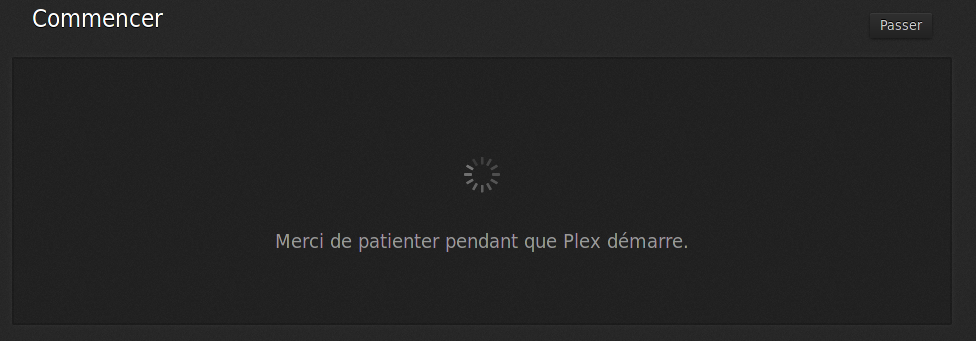
The four important steps are:
- "Welcome to Plex Media Server": Register with the Plex service.
- "Basic Settings": Give the server a name and optionally add your email.
- "Create your library": Add a selection.
- "Install channels": For more services, you need to connect Plex to them.
It runs on: smartphones/tablets/Windows 8/smart TV/Apple TV/Raspberry Pi…
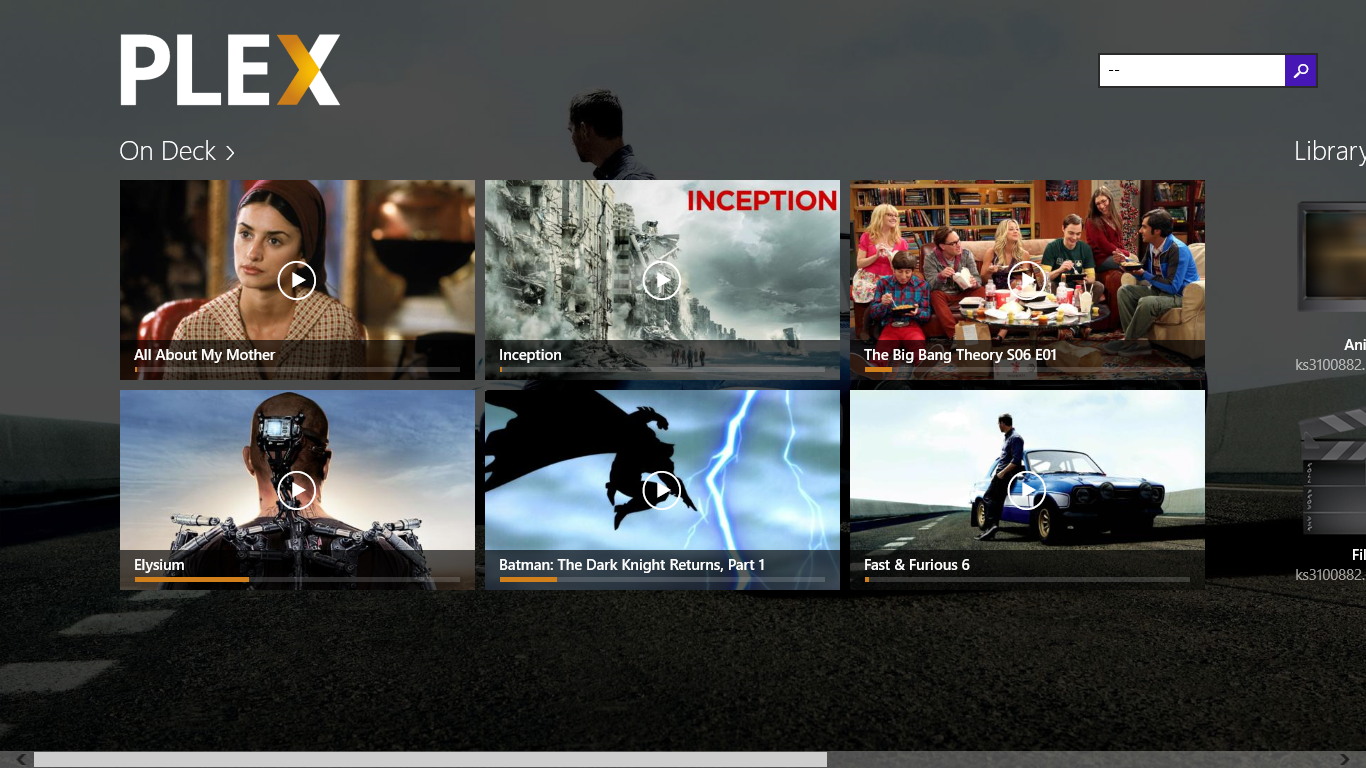
The "metadata agent": TheMovieDB is installed to fetch cover art and synopses.
An article on the cover art system on Smart TVs.
Enjoy your Plex Media Server!