


Configure your Debian 8 environment in desktop mode. Get a customized, ready-to-use Debian OS.
Real-world use case
You want a full Debian workstation rather than a minimal server: here's how to configure Debian 8 in desktop mode.
Configuring Debian 8 in desktop mode
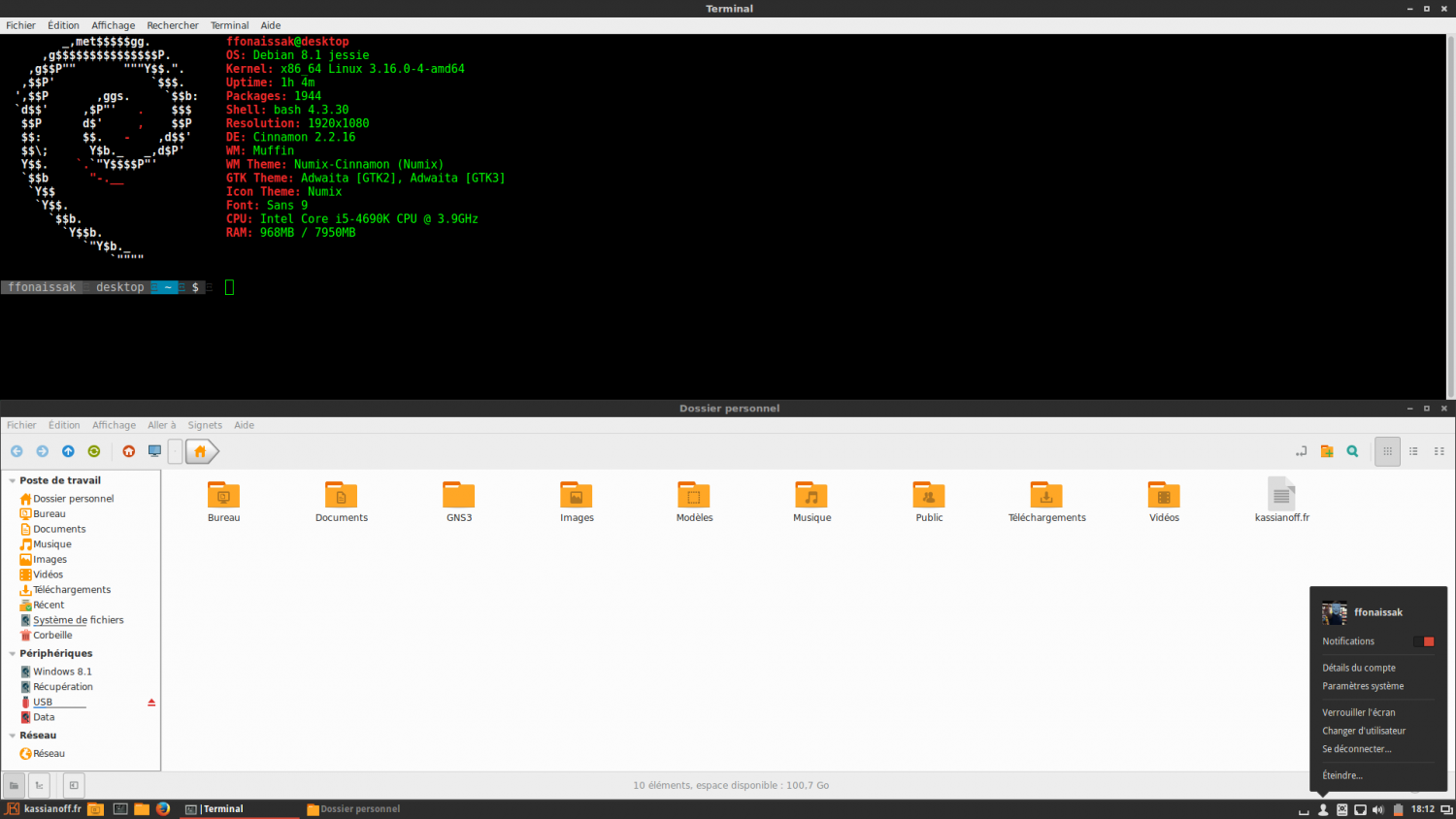
Configuring Debian in desktop mode can be a bit different from server mode. A Linux reference known for being stable, performant, and lightweight, the goal here is to configure it to make it better suited to an everyday environment. With my current hardware: MSI Z97 GAMING 7, Intel(R) Core i5 4690K, Gigabyte GV-N970G1 (GTX970), here's the result I got:
Simplified Debian 8 installation
Let's quickly go over installing the OS with the DVD version (X64 Debian 8.1). The crucial steps, one by one:
Choosing the simplified installation option named install.
Choosing the language, geographic location, and keyboard layout is done in French.
Automatic network configuration via DHCP. We skip the domain field.
The step for creating the root and user credentials is done simply by following the instructions.
Next comes partitioning (I chose to install everything in the root partition).
All of the system's native packages will be installed. No second DVD scan and no mirror.
The Apt tool and all packages will be installed. Skip the statistics survey, then you'll see the following choice appear:
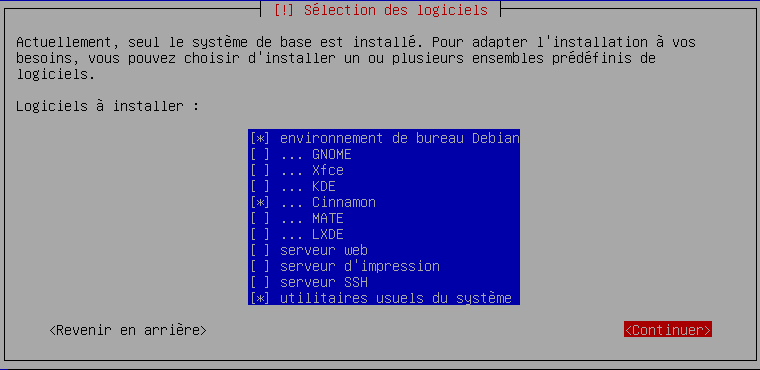
After choosing the Cinnamon desktop environment. Disable the print server.
Choosing and installing software is done by clicking Continue. It'll take a few minutes, then grub needs to be installed on the primary partition (/dev/sda1). The installation finishes.
Modifying the Debian 8 environment
The base environment works very well, however Cinnamon's ergonomics and design can be modified. On top of that, to ensure your hardware components run optimally, I recommend installing your drivers. In this case, we'll perform two steps:
- Customizing the system and Cinnamon: themes, icons, and bashrc.
- Installing drivers: Nvidia GTX970 and, in addition, a TP-LINK wi-fi adapter.
Cinnamon on Debian
For all the ergonomic changes related to Cinnamon, I wrote a full article back in 2013: take a look. As for changing the overall design, I recommend searching for icons and themes on the web. Personally, two projects really caught my interest: Numix and Paper. Let's go over installing Numix together:
Edit the source.list file under Debian Jessie like this:
nano/etc/apt/source.list
Fill in the source.list like this:
#deb cdrom:[Debian GNU/Linux 8.1.0 _Jessie_ - Official amd64 DVD Binary-1 20150606-14:19]/ jessie contrib main
## Debian stable - official repositories

deb http://ftp.fr.debian.org/debian/ stable main
deb http://ftp.fr.debian.org/debian/ stable-updates main

deb http://security.debian.org/ stable/updates main
Download the Numix theme pack from the official GitHub, unzip it, and add it to the system themes:
wget https://github.com/shimmerproject/Numix/archive/master.zip
unzip master.zip
mv Numix-master /usr/share/themes/Numix
Download the Numix icon pack from the official GitHub, unzip it, and add it to the system icons:
wget https://github.com/numixproject/numix-icon-theme/archive/master.zip
unzip master.zip.1
mv numix-icon-theme-master/Numix /usr/share/icons/
mv numix-icon-theme-master/Numix-Ligh /usr/share/icons
Then head to: Menu/System settings/Themes/More settings:
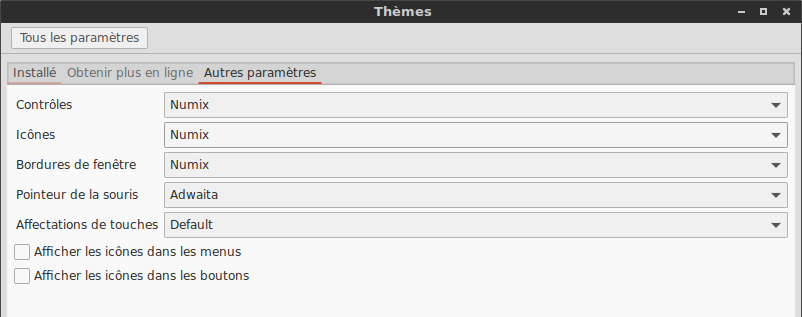
The previous steps should give you the result below:
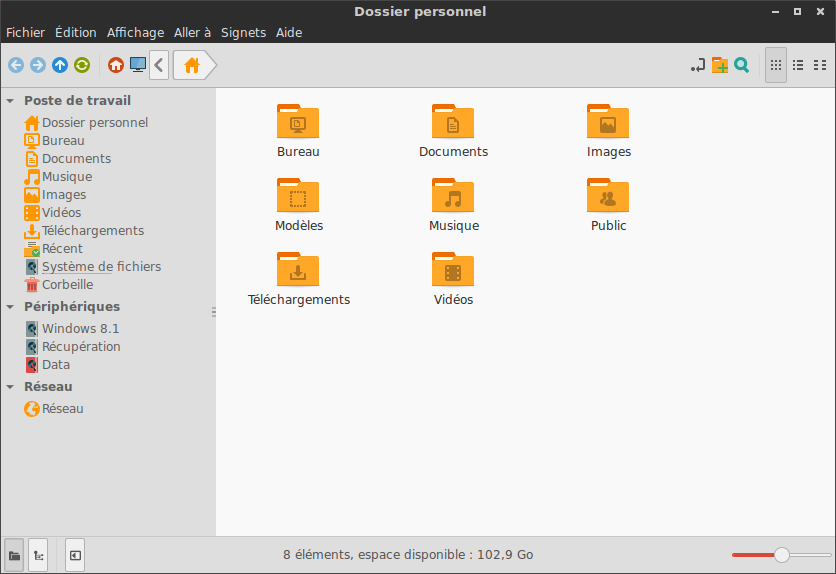
You can make your terminal nicer with screenfetch:
apt-get install screenfetch
Continue customizing your shell by downloading Powerline from the official GitHub:
git clone https://github.com/milkbikis/powerline-shell
cd powerline-shell
./install.py
ln -s  ~/powerline-shell.py
The last step is editing your .bashrc as your user:
nano ~/.bashrc
At the end of the file, add this:
function _update_ps1() {

export PS1="$(~/powerline-shell.py $?) "

}

export PROMPT_COMMAND="_update_ps1"
screenfetch
Nvidia GTX970 drivers on Debian 8
By default, my Gigabyte Gaming GTX970 (GV-N970G1) doesn't go beyond 800×600 with the base install under Debian.
I need to install video drivers, and I chose Nvidia's official drivers, available on the official website.
cd /home/jeremie/Downloads
chmod +x NVIDIA-Linux-x86_64-352.30.run
Before running the driver installation, there are a few prerequisites, such as:
The gcc compiler package needs to be in place:
apt-get install gcc
The kernel source isn't in place by default, and the solution is to search for it and install it:
apt-cache search linux-headers

linux-headers-3.16.0-4-all - All header files for Linux 3.16 (meta-package)
linux-headers-3.16.0-4-all-amd64 - All header files for Linux 3.16 (meta-package)
linux-headers-3.16.0-4-amd64 - Header files for Linux 3.16.0-4-amd64
linux-headers-3.16.0-4-common - Common header files for Linux 3.16.0-4
linux-headers-amd64 - Header files for Linux amd64 configuration (meta-package)
You need to install the kernel headers:
apt-get install linux-headers-3.16.0-4-amd64
Then, stop the current graphical session manager:
/etc/init.d/lightdm stop
The driver installation can now begin:
./NVIDIA-Linux-x86_64-352.30.run
Nvidia X now handles the graphics card perfectly, and your resolution has automatically adapted to your screen.
TP-LINK adapter: WN725N on Debian 8
In addition to your wired connection, you might also have a wi-fi adapter. Mine is a TL-WN725N (Realtek). It wasn't recognized, and a loop of errors kept appearing in my tty! I couldn't use it anymore unless I unplugged the dongle. So the solution is to install the driver. Here's how to proceed:
Add a new repository to your "source.list":
deb http://http.debian.net/debian/ jessie main contrib non-free
apt-get update
apt-get install firmware-realtek
My wi-fi connection is finally available with network-manager and works without a hitch.
Cleaning up unnecessary packages
The default software that comes natively with Debian doesn't necessarily suit me, since I won't use all of it. Let's see how to clean up certain packages. To start, list all the packages installed by default:
dpkg -l | grep '^i'
A long list appears with various pieces of information, like here:
ii accountsservice 0.6.37-3+b1 amd64 query and manipulate user account information
The column shows: name, version, and package description.
As an example, here's the list of software I removed: iceweasel should only be done if you have another browser.
apt-get autoremove --purge nautilus brasero gimp icedove iceweasel imagemagick gnome-games
We've seen how to configure Debian 8 in desktop mode so it doesn't weigh more than 5 GB. The environment is very pleasant to use with Numix, and from here I'll leave it to you to install your favorite software!