


Perform digital forensics on an Android device.
Real-world use case
A seized Android device needs to be analyzed as part of an investigation: here's the methodology and tools for extracting and exploiting digital evidence.
Loss of trust
Data theft or the physical theft of a device usually causes a loss of trust in using digital tools. It's common for victims of this kind of event to contact me. So I decided to share my analysis notes on a digital forensics investigation case performed on a Samsung S21 Android device.
The request
The request comes in about 3 years after a phone was physically stolen for several minutes. The user is suspicious of their mobile device. Before our involvement, the client had reset the device twice, the last time in March 2024. They want to know if they can really trust their device, and turned to the cybermalveillance.gouv.fr platform to find an analyst, which is how we got involved.
The methodology
We have several tools at our disposal to analyze and extract data from the Android phone (this also works on Apple's iOS).
The main steps:
- Enable developer mode on the Android phone
- Temporarily disable the "Auto Blocker" option to allow USB debugging under "Security and privacy", from "More security settings".
- Allow USB debugging on the Android phone
- Connect the Android phone to a controlled network
- Connect the Android phone to the computer performing the analysis
- Analyze the exported data
- Analyze the results of all exported files
- Analyze the results of all captured network traffic
- Write a digital forensics report
Data extraction and automated analysis
To analyze the data and export it, we use Amnesty International's MVT tool.
The following command exports the phone's data via adb into the "samsung-s21" folder:
mvt-android check-adb --output samsung-s21
The "samsung-s21" folder now contains all of the phone's data, we'll later focus specifically on the timeline.csv, command.log, and selinux_status.json files.
Now we use our API key from VirusTotal to analyze the Android applications on the phone:
MVT_VT_API_KEY=our_api_key mvt-android download-apks --output samsung-s21 --virustotal
We get a first result showing the detection status of the applications, example:
                                              VirusTotal Packages Detections
┏━━━━━━━━━━━━━━━━━━━━━━━━━━━━━━━━━━━━━━┳━━━━━━━━━━━━━━━━━━━━━━━━━━━━━━━━━━━━━━━━━━━━━━━━━━━━━━━━━━━━━━━━━━━━┳━━━━━━━━━━━━┓
┃ Package name                         ┃ File path                                                          ┃ Detections ┃
┡━━━━━━━━━━━━━━━━━━━━━━━━━━━━━━━━━━━━━━╇━━━━━━━━━━━━━━━━━━━━━━━━━━━━━━━━━━━━━━━━━━━━━━━━━━━━━━━━━━━━━━━━━━━━╇━━━━━━━━━━━━┩
│ com.google.android.apps.photos       │ /data/app/~~6ScFz6ZsvfRvakL9Ev00Tg==/com.google.android.apps.phot… │ 0/79       │
│ com.google.android.apps.photos       │ /data/app/~~6ScFz6ZsvfRvakL9Ev00Tg==/com.google.android.apps.phot… │ 0/79       │
│ com.google.android.apps.photos       │ /data/app/~~6ScFz6ZsvfRvakL9Ev00Tg==/com.google.android.apps.phot… │ not found  │
On top of that, we use Microsoft Defender for Endpoint to analyze the extracted applications.
We start by installing the latest security intelligence updates, in order to get the latest signatures against threats:
mdatp definitions update
Security intelligence update finished
We scan the "samsung-s21" folder:
mdatp scan custom --path samsung-s21
Scan has finished
    194 file(s) scanned
    0 threat(s) detected
We get a consistent result, letting us confirm that the extracted applications aren't malicious.
Manual analysis of system and application data
Along the way, the tool extracted the following data from the device, providing a wealth of information:
.
├── command.log
├── dumpsys_accessibility.json
├── dumpsys_activities.json
├── dumpsys_adb_state.json
├── dumpsys_appops.json
├── dumpsys_battery_daily.json
├── dumpsys_battery_history.json
├── dumpsys_dbinfo.json
├── dumpsys_receivers.json
├── dumpsys.txt
├── files.json
├── getprop.json
├── info.json
├── logcat_last.txt
├── logcat.txt
├── packages.json
├── processes.json
├── selinux_status.json
├── settings.json
├── sms.json
└── timeline.csv
We then take a closer look at the "command.log", "timeline.csv", and "selinux_status.json" files.
The "command.log" file
It notably helps to understand the analysis process and then observe the results:
- Loading and parsing STIX2 indicators
- The log shows at startup that MVT reads several indicator files (STIX2 files) from various sources.
- Running the modules
- Various modules run to extract and analyze data from the phone (Chrome history, SMS, WhatsApp, process lists, system properties, settings, etc.).
- Here are the results of the following modules:
bash- Running module ChromeHistory - Running module SMS - Running module Whatsapp - Running module Processes - Running module Getprop - Running module Settings - Running module SELinuxStatus - Running module DumpsysBatteryHistory - Running module DumpsysBatteryDaily - Running module DumpsysReceiver - Running module DumpsysActivities - Running module DumpsysDBInfo - Running module DumpsysADBState - Running module DumpsysFull - Running module DumpsysAppOps - Running module Packages - Running module Logcat - Running module RootBinaries - Running module Files
A few sample results from the analysis:
2025-04-10 07:13:44,977 - mvt.android.modules.adb.sms - INFO - Extracted a total of 31 SMS messages
2025-04-10 07:13:45,429 - mvt.android.modules.adb.sms - DEBUG - Found a shortened URL https://shorturl.at/AxaaN ->
2025-04-10 07:13:46,132 - mvt.android.modules.adb.settings - WARNING - Found suspicious "secure" setting "accessibility_enabled = 1" (enabled accessibility services)
2025-04-10 07:13:46,134 - mvt.android.modules.adb.settings - WARNING - Found suspicious "secure" setting "install_non_market_apps = 1" (enabled installation of non Google Play apps)
In the client's case, accessibility wasn't needed, but installing APKs outside of the Google Play app made sense since the client has a supplementary Samsung store. No significant security risk was detected, and the visible shortened URL no longer exists.
The "timeline.csv" file:
Timeline.csv is generated by MVT to provide a chronological view of the events extracted during a mobile device's analysis. Specifically, it contains timestamped information from various sources (system logs, application registries, metadata, etc.) that let the analyst reconstruct the timeline of actions and events on the device.
For investigative work, this timeline is a valuable tool that lets you establish a timeline of the facts, essential for reconstructing the sequence of events and providing leads during security analyses or digital investigations.
A few sample results:
"2024-03-24 11:34:18.884000","Files","file_modified","/sdcard/Music/Samsung/Over_the_Horizon.m4a"
"2024-03-24 11:34:18.884000","Files","file_modified","/storage/emulated/0/Music/Samsung/Over_the_Horizon.m4a"
We can see the last reset date, March 24, 2024 at 11:34 AM, where Samsung's default music was modified. This "Over the Horizon" audio file is pre-installed from the device's initialization, and it's often used as the default ringtone.
The music seems iconic for fans of the brand, since it's been the same track since 2011 (Samsung S2):
Likewise, following the timestamps, the modification of a pre-installed application required for the connection between Samsung and the Orange carrier:
"2024-03-24 11:37:14.144000","Files","file_modified","/storage/emulated/0/Android/data/com.aura.oobe.samsung/files/appcloud_oobe_samsungOrange-release_V6.3.82.0.apk"
"2024-03-24 11:37:14.144000","Files","file_modified","/sdcard/Android/data/com.aura.oobe.samsung/files/appcloud_oobe_samsungOrange-release_V6.3.82.0.apk"
"2024-03-24 11:37:17.320000","Files","file_modified","/sdcard/Android/data/com.aura.oobe.samsung/files/appcloud_oobe_samsungOrange-release_V6.3.82.0-1.apk"
We were able to manually confirm that nothing has been malicious since that day.
The "selinux_status.json" file
It reports the current status of SELinux, an Android security mechanism, and can reveal whether the system is in enforcing or permissive mode. SELinux enforcing mode strictly applies the security policy by blocking actions that aren't allowed, while permissive mode doesn't block these actions but logs their attempts.
On top of that, we checked with a root checker that the device wasn't unlocked, since that's a significant risk to the device's security. In this case, the device isn't "rooted." So no risk was identified.
Manual analysis of network data
Over several days, we connected the Android phone to a dedicated network in order to capture all traffic. For this, we use a Palo Alto firewall, here's a sample of the results:
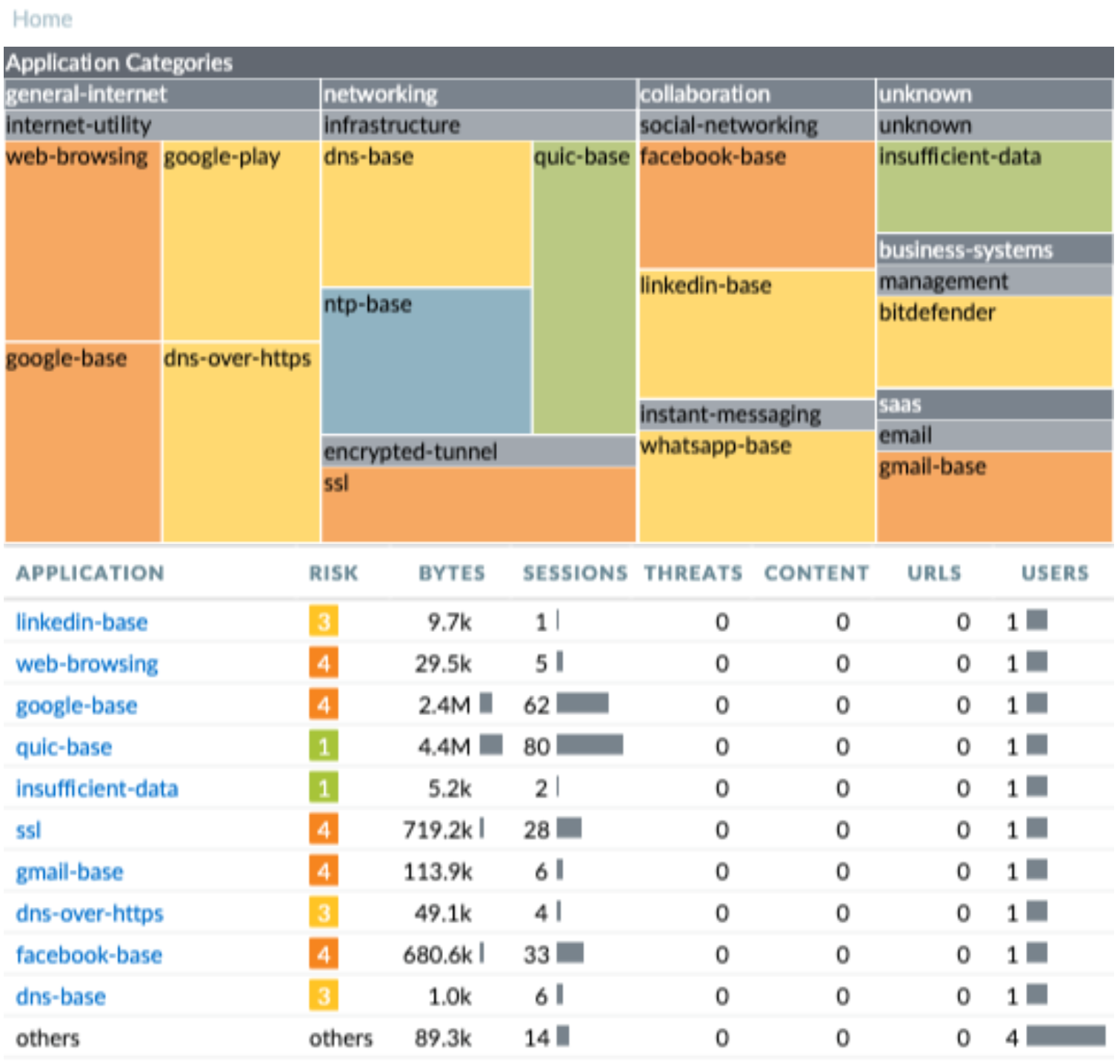
The risk levels are consistent with Palo Alto's native categories, while the content, URLs, and threats on the sessions don't show any malicious connection. The other reports, as well as exporting the connection-by-connection logs, revealed nothing abnormal.
Conclusion
Our role wasn't to go back over the events of the previous 3 years, since the device had been reset twice by the user. Technically, we don't have the means to do that, and our client also isn't in a financial position to commission that kind of service. However, they wanted to keep their phone and make sure it was clean in order to keep using it daily.
So here it is, with all the necessary guarantees to reassure them, they now have a report, with all the related logs and events. The investigators at cybermalveillance.gouv.fr also received the digital elements needed to assess our results. It's still important to keep in mind that if the user hadn't performed a reset, it would have been easy to confirm whether a malicious element or illegitimate actions had taken place on their device. If this happens to you, don't touch anything, have it analyzed immediately by a qualified person.